
Phone Running Slow? 11 Fixes That Actually Speed Up Android
 androfyi November 3, 2026 14 min read 4 views
A slow Android phone is almost never slow because it “doesn’t have enough RAM”. In practice it is usually one of four things: storage that is nearly full, one misbehaving app, out-of-date software, or a battery that is wearing out. Work through the fixes below in order — the first three fix most phones, and each one is free, reversible and safe to try.
Read this first: No app can add RAM to your phone, and no setting will make a five-year-old phone perform like a new one. Be especially wary of “RAM cleaner”, “phone booster” and “speed up” apps: Android is designed to keep RAM busy, and these apps mostly show you ads, nag you for permissions, and force-close apps that then have to restart from scratch — which makes the phone slower and uses more battery. Everything in this guide uses tools already built into your phone.
Diagnose First: Find Out What Is Actually Slowing Your Phone Down
Before changing anything, spend two minutes checking. Guessing wrong wastes more time than diagnosing properly.
Check Your Storage Headroom
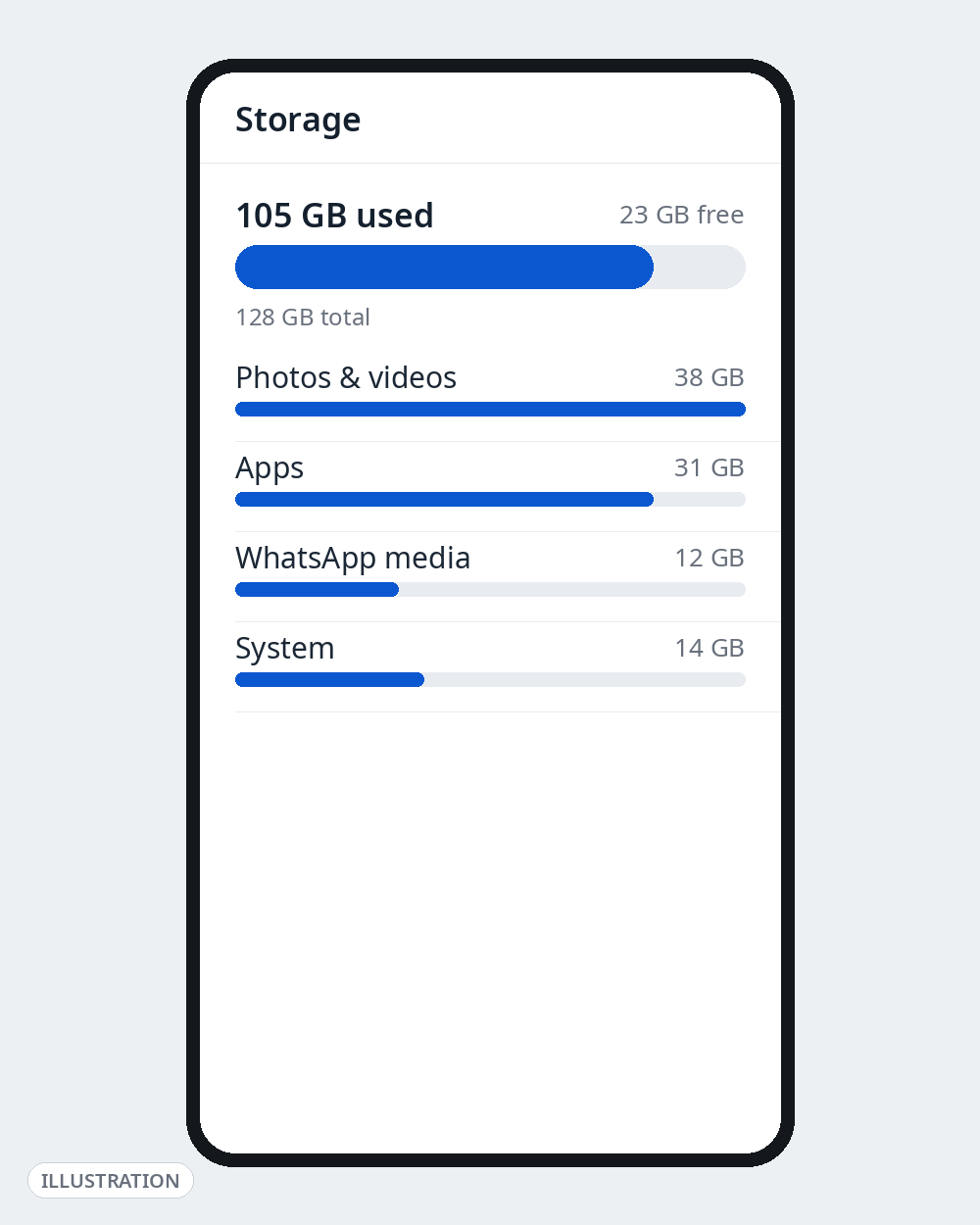
This is the single most common cause of a slow phone. Open Settings → Storage (on a Samsung Galaxy: Settings → Battery and device care → Storage) and look at how much space is free. Google’s own support guidance says a phone can start having issues when less than 10% of its storage is free — apps stutter, updates fail, the camera may refuse to save photos. Treat 10% as the floor, not the goal: aim to keep roughly 10–15% of your storage free. On a 128 GB phone, that means about 13–19 GB free.
The same screen shows what is eating the space, usually in categories. On most phones the big three are photos and videos, chat-app media (WhatsApp is a repeat offender), and a handful of large apps and games.
See Which Apps Are Working Hardest
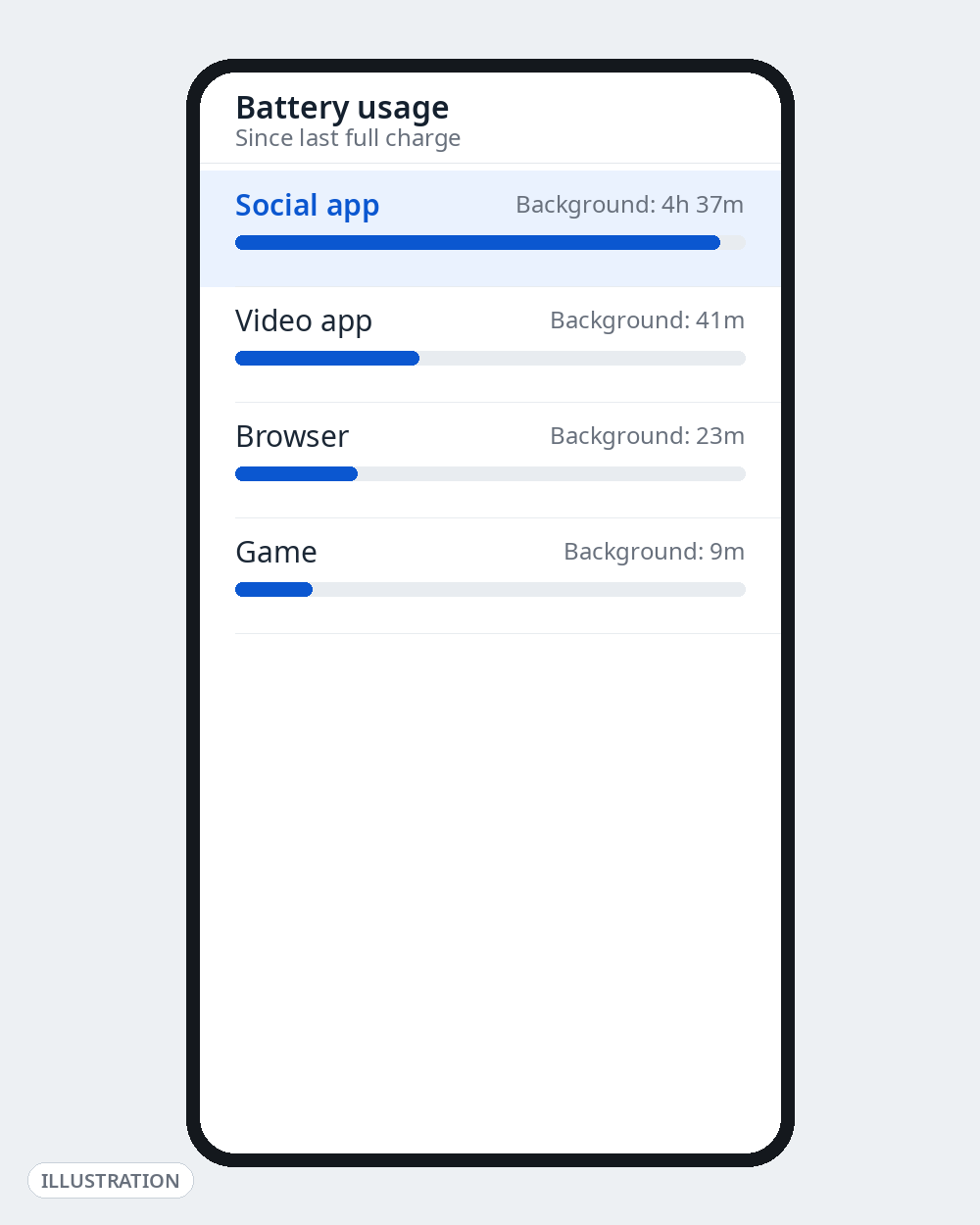
Next, open Settings → Battery → Battery usage (on Samsung: Settings → Battery and device care → Battery, then the usage list) and look at which apps have used the most battery since the last full charge. Battery use is not a perfect measure of slowness, but a single app sitting far above everything else — especially one you were not actively using — is your prime suspect for freezes, heat and lag. Remember its name; Fix 6 will prove or clear it.
One thing you can ignore: the “free RAM” number. Android deliberately keeps recently used apps in RAM so they reopen instantly. RAM that looks “full” is normal and healthy — which is why booster apps are selling you a problem that does not exist.
The 11 Fixes, in the Order to Try Them
Fix 1: Restart — Properly
A real restart clears temporary glitches, stuck processes and half-finished update work that builds up over weeks of uptime. Press and hold the power button (on a Pixel 6 or later, power + volume up together) and tap Restart — locking and unlocking the screen is not the same thing. After the phone boots, give it a full minute to settle before judging. If your phone has not been restarted in weeks, this alone sometimes ends the complaint, and a weekly restart is dull advice that genuinely works.
Fix 2: Free Up Storage Until You Have Real Headroom
If your storage check showed less than 10–15% free, fix that before anything else — no other tweak compensates for a full disk. Work through the easy wins first:
- Photos and videos: back them up to Google Photos (confirm the backup says it is complete), then use its Free up space option to remove the on-device copies safely.
- Chat media: in WhatsApp, open Settings → Storage and data → Manage storage and clear large forwarded videos from busy groups.
- Offline downloads: old Netflix/Prime Video downloads, Spotify offline albums and downloaded Google Maps areas are easy to forget and often gigabytes in size.
- Downloads folder and duplicates: clear installers (APK files), duplicate photos and screen recordings you no longer need.
- Gallery trash: deleted photos sit in the Gallery/Files trash for up to 30 days on many phones — empty it to actually reclaim the space.
Fix 3: Uninstall or Disable the Apps You Don’t Use
Every app you never open still takes storage, may run background work, and still gets updated. Open Settings → Apps and go through the list honestly: if you have not opened it in three months, uninstall it. On newer Android versions you may also see an Archive option (in the Play Store under Manage apps & device) — archiving removes most of an app’s size while keeping its data, a good middle option for apps you use rarely.
Pre-installed apps you cannot uninstall can usually be disabled instead: Settings → Apps → [app] → Disable. Stick to obvious bloatware — games, shopping and streaming apps you never asked for. Do not disable anything whose name suggests a system function (“system”, “framework”, core maker services); if you are not sure what an app is, leave it alone.
Fix 4: Clear the Cache of a Few Bloated Apps — Individually
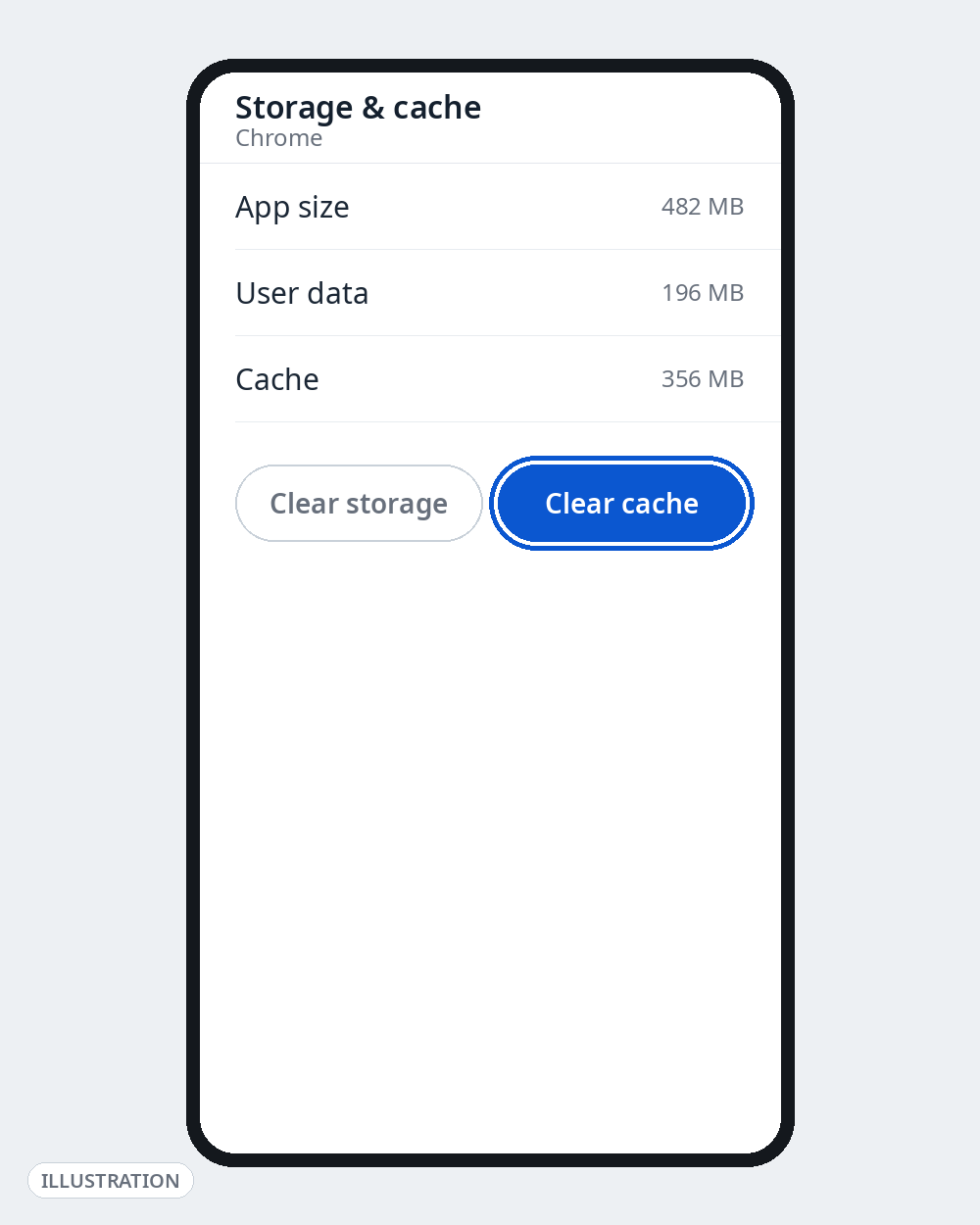
Cache is temporary data an app keeps so it loads faster. Normally it is helpful, but some apps let it grow without limit or it becomes corrupted, and then clearing it reclaims real space. Go app by app, starting with the worst offenders (browsers, social and video apps): on a Pixel, Settings → Apps → See all apps → [app] → Storage & cache → Clear cache; on a Samsung, Settings → Apps → [app] → Storage → Clear cache.
Two warnings. First, Clear cache is not Clear storage/data — the second button wipes the app’s data, logins and downloads, so read before you tap. Second, do not turn this into a daily ritual: the cache rebuilds itself, so “clear all cache” cleaners are pointless as a routine. Android itself removed the old one-tap “Cached data” button from Storage years ago — any app promising to restore it is really selling ads. Clear cache surgically, when a specific app is bloated or misbehaving.
Fix 5: Update Your Apps, Then the System
Out-of-date software is a quiet cause of slowness, because developers regularly fix performance bugs. In the Play Store, tap your profile picture → Manage apps & device → Update all. Then check for a system update: on a Pixel, Settings → System → Software update; on a Samsung, Settings → Software update → Download and install. Restart after updating, and give a big system update a day to settle — phones often feel slower for the first few hours while the system re-optimises apps in the background.
Fix 6: Use Safe Mode to Catch a Bad App
If the phone is still slow, this test tells you whether one of your installed apps is the culprit. Safe Mode runs only the apps that came with the phone; everything you downloaded is switched off.
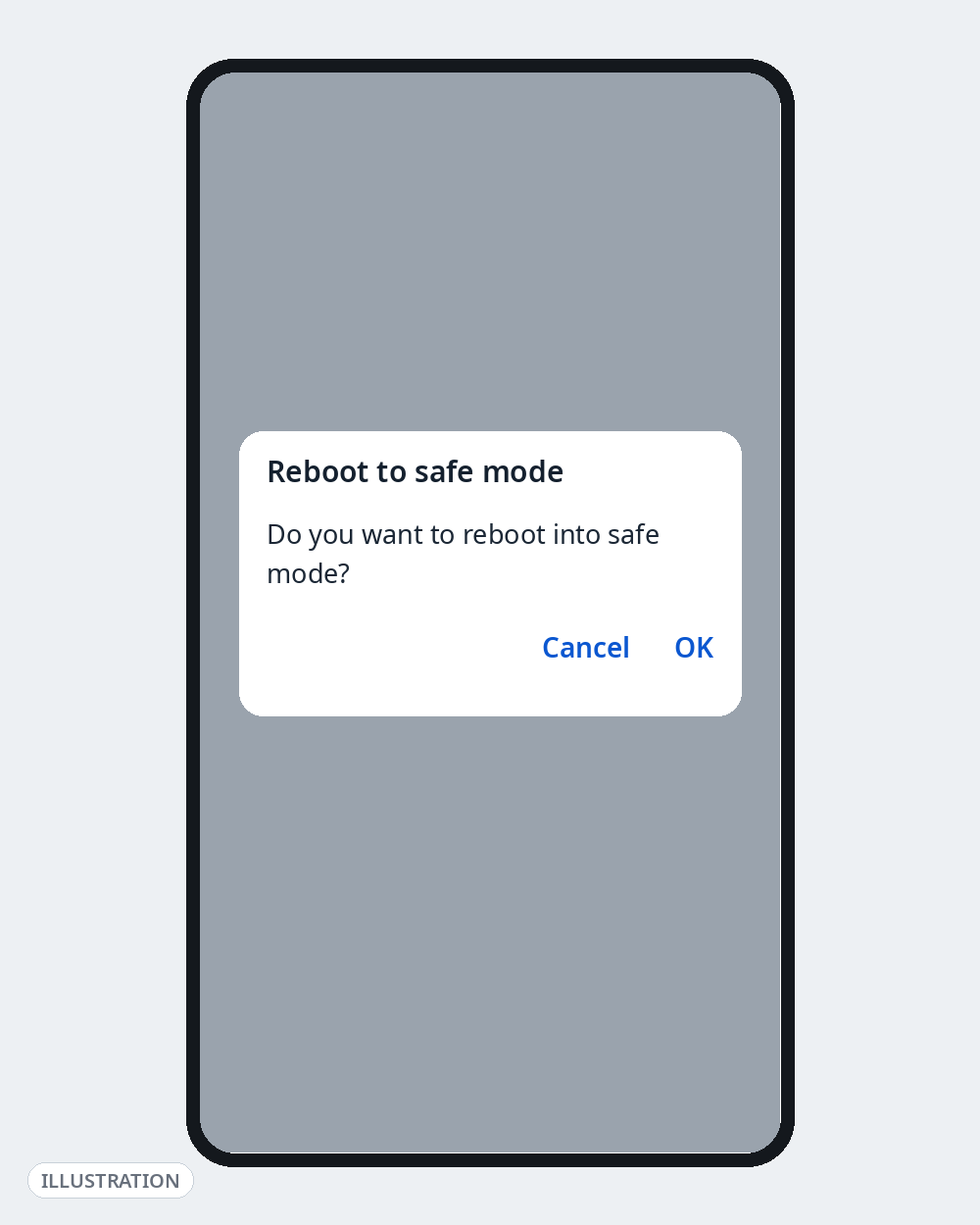
- Pixel and most stock Android: with the phone on, open the power menu, then touch and hold Power off until Reboot to safe mode appears, and tap OK.
- Samsung Galaxy: open the power menu (if your Side key opens Bixby instead, swipe down twice from the top and tap the power icon), then touch and hold Power off until Safe mode appears, and tap it.
You will see “Safe mode” at the bottom of the screen. Use the phone normally for a while. If it feels fast again, a downloaded app is the problem: restart normally to leave Safe Mode, then uninstall recently added or updated apps one at a time until the lag goes. If it is just as slow in Safe Mode, your apps are innocent — move on. Two quirks: Google warns that Safe Mode removes some home-screen widgets (screenshot your layout first), and on Pixels it turns airplane mode on, so switch that off if you need calls or Wi-Fi while testing.
Fix 7: Turn the Animation Scales Down to 0.5x
This is the one “hidden setting” on this list, and it comes with an honest label: it does not make your processor faster. It shortens the animations Android plays when you open apps and switch screens, so everything feels faster — on an older phone, the difference is striking.
First, unlock Developer options. On a Samsung: Settings → About phone → Software information, then tap Build number seven times. On a Pixel and most other phones: Settings → About phone, then tap Build number seven times. You will see a countdown, then a “You are now a developer” message.
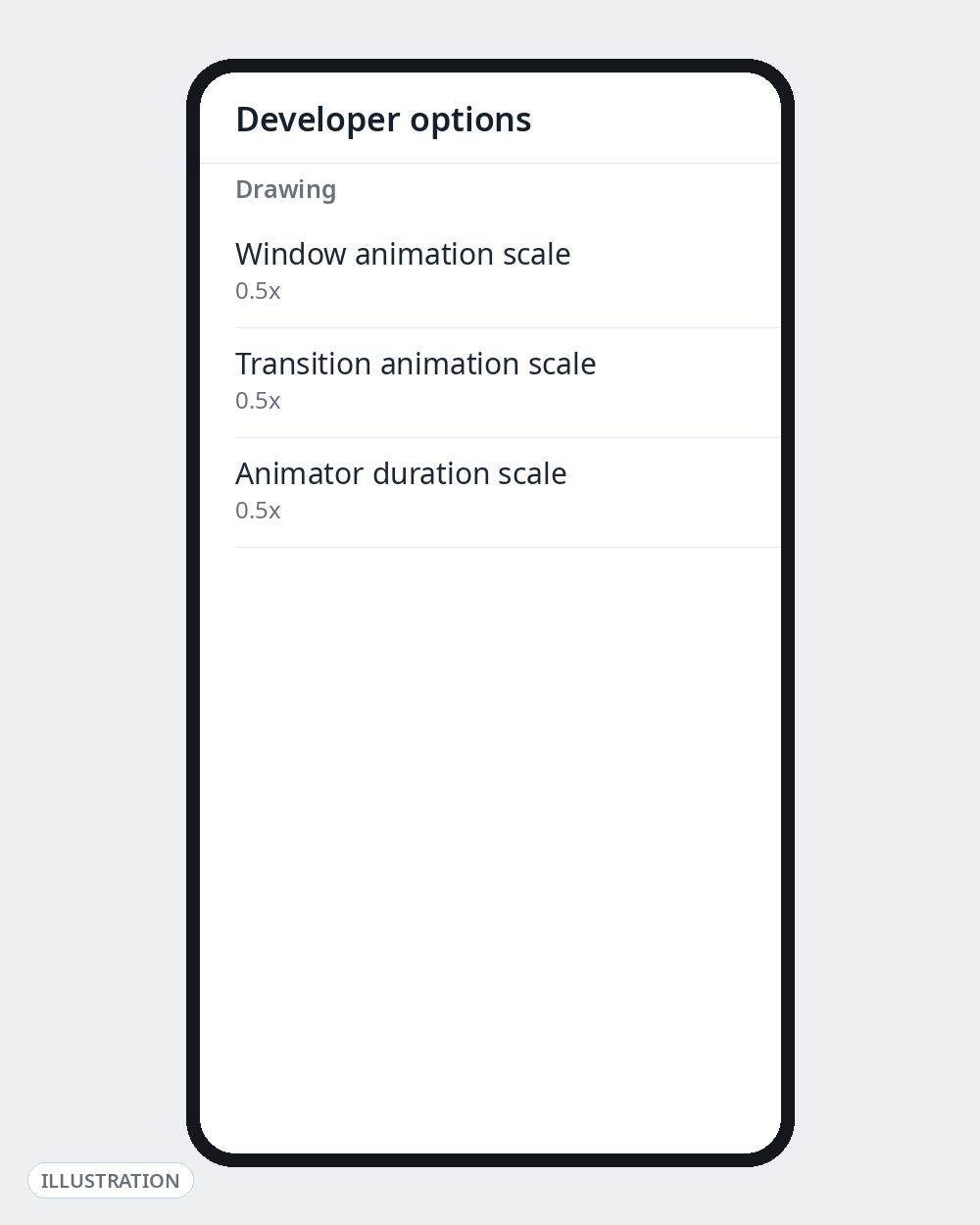
Now open Settings → Developer options (on Pixel and stock Android: Settings → System → Developer options), scroll to the Drawing section, and set all three of these to 0.5x:
- Window animation scale
- Transition animation scale
- Animator duration scale
That is all you should change in Developer options — leave everything else alone, including settings like background process limits. Our Developer Options power user’s guide explains which of the other settings are safe and which are not.
Fix 8: Switch Heavy Apps to Lite or Web Versions
Some flagship apps are simply heavy for an older phone. Where a service offers a lighter route, take it: Facebook Lite is still published by Meta and combines Facebook with messaging in a much smaller app. But check before installing anything an old article recommends — several famous Lite apps have been shut down (Meta closed Messenger Lite in 2023, and Spotify Lite was discontinued too).
The option that always exists is the browser. Using a service’s mobile website instead of its app — Facebook, X, news sites, even YouTube for occasional viewing — uses no permanent storage and runs no background process. Adding the site to your home screen from Chrome’s menu gives you an app-like icon without the app.
Fix 9: Cut Live Wallpapers and Busy Widgets
A live wallpaper is a small app your phone keeps rendering every second the screen is on, and weather, news and social widgets wake up in the background to refresh themselves. Neither will ruin a modern phone, but on a low-end or ageing one they are constant background work you can simply delete: switch to a still wallpaper and remove widgets you do not actually glance at. Honestly, this is a small fix — do it because it costs nothing, not because it will transform the phone.
Fix 10: Check the Battery — A Worn Battery Can Slow a Phone Down
Batteries age, and a degraded battery does more than die early: a phone whose battery can no longer deliver power reliably may shut down unexpectedly and can reduce performance to protect itself. If your slow phone is also two or more years old, drains oddly, or the back panel is lifting even slightly — a swelling battery sign, and a stop-using-it-and-visit-a-service-centre sign — the battery is part of the story. Checking battery health properly is a guide of its own, and we have written it: see Battery draining fast after an Android update? 11 fixes that actually work.
Fix 11: Factory Reset — The Last Resort, Done Properly
If you have worked through everything above and the phone is still slow, a factory reset returns the software to a clean state. It erases everything on the phone, so back up first: photos and files (Google One/Google Photos), WhatsApp chats (Settings → Chats → Chat backup), and anything stored only inside an app. Make sure you know your Google account password — after a reset you will need it to sign back in, and the phone will not let you skip that check.
Then reset from settings, never from a dial code: on a Pixel, Settings → System → Reset options → Erase all data (factory reset); on a Samsung, Settings → General management → Reset → Factory data reset. Set the phone up fresh rather than restoring everything in bulk if you can — restoring the same problem app brings the problem back. If it is still slow after a clean reset with only essential apps installed, the hardware has reached its limit, and no guide (including this one) can fix that.
What Won’t Speed Up Your Phone
- RAM boosters, task killers and “one-tap speed up” apps. Covered above, but it bears repeating: force-closing apps makes them restart from zero, which is slower and uses more battery. Android manages memory itself.
- Closing all your recent apps every hour. Same mistake, done manually. Leave the recents screen alone unless one app has actually frozen.
- Clearing every app’s cache daily. The cache rebuilds by design; you are deleting the thing that makes apps open faster, then blaming the phone for opening them slowly the next time.
- “Optimiser” apps bundled with ads and VPNs. If a free app’s real business is showing you ads after every “scan”, its scan results are marketing, not diagnosis.
Go Deeper on Androfyi
- Battery draining as fast as the phone feels slow? Start with Battery draining fast after an Android update?.
- Phone getting hot while you work through these fixes? Read Phone heating while charging: 9 fixes that actually work.
- Ready to explore Developer options beyond animation scales, safely? See the Developer Options power user’s guide.
- For settings worth changing on every Android phone, read 7 Android settings that change everything.
FAQ
Why Did My Phone Suddenly Get Slow?
Sudden slowness usually has a trigger: a system update still settling in (give it a day), an app that recently updated badly (Safe Mode, Fix 6, will find it), storage that just crossed the nearly-full line, or the phone overheating and throttling itself. Gradual slowness over a year or more is more often storage creep plus a wearing battery.
Will a RAM Booster or Cleaner App Speed Up My Phone?
No. Android is built to keep RAM occupied with apps you are likely to reopen; empty RAM is wasted RAM. Booster apps force those apps closed, so your phone spends more time and battery reopening them from scratch. The useful “cleaner” functions — finding large files and duplicate photos — already exist in Files by Google and your phone’s own Storage screen, without the ads and permission demands.
Does Clearing an App’s Cache Delete My Photos, Chats or Logins?
No. Cache is temporary data the app can rebuild — thumbnails, pre-loaded images, temporary files. Clearing it may make the app feel slightly slower the first time you open it afterwards. Your photos, chats, accounts and settings live in the app’s data, which is only erased by the separate Clear storage / Clear data button. That distinction is the one thing to get right in Fix 4.
How Much Free Storage Does My Phone Actually Need?
Google’s guidance is that problems can start when less than 10% of storage is free, so treat that as the minimum and aim for 10–15% free in everyday use — roughly 13–19 GB on a 128 GB phone, or 6–10 GB on a 64 GB phone. The percentages matter more than the gigabytes: a small phone with 15% free will behave better than a big phone with 3% free.
My Phone Is Still Slow After a Factory Reset. What Now?
Then the software was never the main problem. On a clean reset with only essential apps installed, remaining slowness points to hardware: a worn-out battery (a service centre can test and replace it), ageing storage, or a processor and RAM combination that current apps have simply outgrown. A battery replacement is often the cheapest meaningful upgrade for a two-to-four-year-old phone; beyond that, it is replacement time, and it is better to hear that honestly than to install another booster app.
Sources Checked for This Guide
Fixes and menu paths were cross-checked against: Google’s Android Help pages on speeding up a slow Android device, freeing up space (including the guidance that issues can start below 10% free storage) and finding problem apps with Safe Mode; Google’s Pixel Phone Help Safe Mode page (power-menu method, widget and airplane-mode warnings); Samsung support and Samsung Members guidance on Device care storage, clearing app cache and Developer options; and Android press coverage (Android Authority, How-To Geek, MakeUseOf, gHacks) on animation scales, task killers and the discontinuation of Messenger Lite (2023) and Spotify Lite. Where menu names differ between Samsung and Pixel, both paths are given rather than averaged into one wrong one.