How to Check If Your Phone Is Hacked: 10 Real Signs & What to Do Next
 androfyi October 31, 2026 11 min read 5 views
Worried right now? Do this 60-second check first — it covers the places real problems actually hide:
- Settings → Apps — is there an app you don’t recognise and never installed?
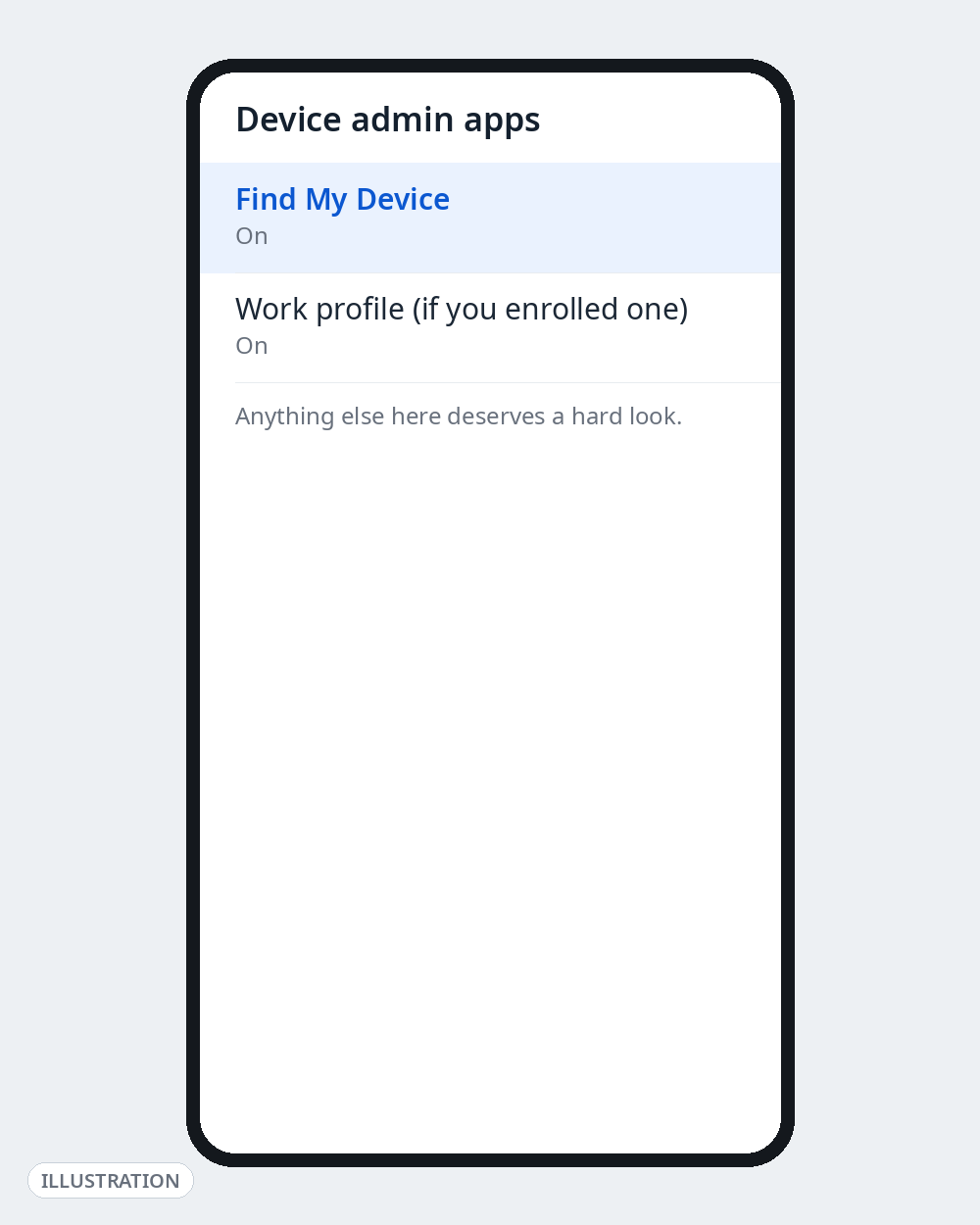
- Settings → Security → Device admin apps — anything listed besides “Find My Device” and apps you know?
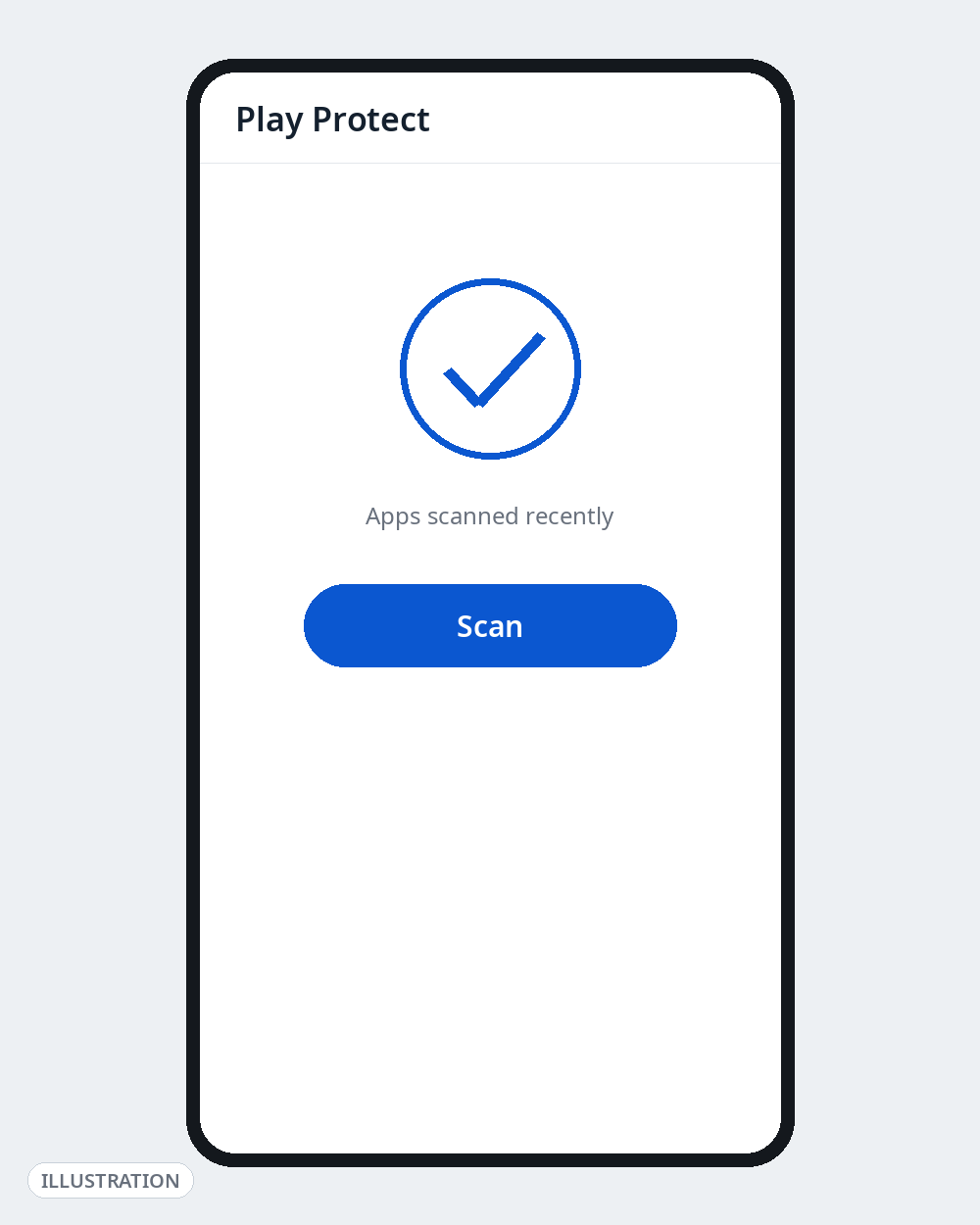
- Play Store → your profile picture → Play Protect → Scan — does the scan come back clean?
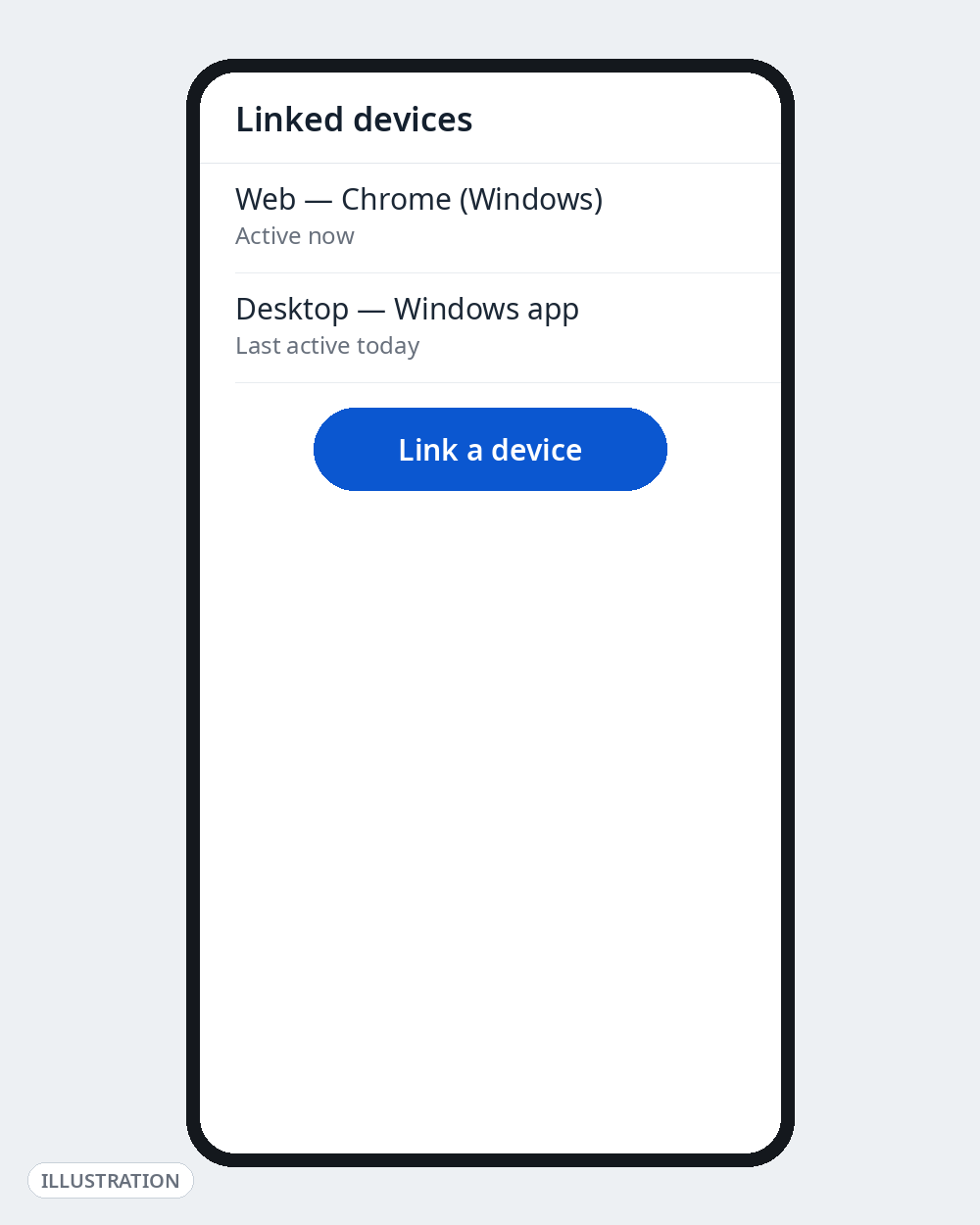
- WhatsApp → Settings → Linked devices — any session that isn’t yours?
If all four are clean, your phone is very probably fine, whatever a viral video told you. Most “my phone is hacked” scares turn out to be ordinary: an update, a dying battery, a greedy app, or a scam message designed to frighten you. Real compromises happen — but in India they are usually a taken-over account (Google, WhatsApp, email) or a SIM swap, not spyware on the phone itself.
Read this first: Stay calm, and don’t install anything or pay anyone in a panic. No dial code can detect tapping or spyware — anyone selling an “anti-hack code”, a “spyware detector” app or a paid “phone cleaning” service is running a scam, and installing a stranger’s app is how many real compromises start. Every check below uses settings already on your phone and changes nothing. Menu names vary slightly by brand; if a path doesn’t match, search Settings for the same words.
Signs That Are Usually Innocent
The symptoms in almost every viral “your phone is hacked” post — each with an ordinary explanation far more common than hacking.
| What you noticed | What’s usually actually happening |
|---|---|
| Phone is warm, slow, drains fast, or shows storage warnings | A recent update still settling (drain usually settles in a day or two), weak signal, an ageing battery, nearly full storage, or one badly behaved app. |
*#21# shows “enabled” or a phone number | That is your call forwarding status (myth section below). The number is almost always your carrier’s voicemail, set up when your SIM was activated. |
| Pop-up ads and “your phone is infected!” warnings in the browser | A website you gave notification permission is spamming you, or it’s a fake warning page. The warning itself is the scam — never tap its buttons or call its number. |
| Data usage jumped this month | App updates over mobile data, photo backup catching up, or a streaming app’s quality setting. |
| A “money debited” alert arrives on WhatsApp from an unknown number | A fake alert designed to make you reply or tap a link. Don’t reply — check your bank’s own app. No such debit? Block and report. |
| Someone phones to say your phone is hacked | A scam, every time. Banks, police and Google never call about this, and never ask you to install a “support” app. Hang up. |
The *#21# Myth, Explained Properly
A claim that goes viral every year: dial *#21#, and if the screen shows anything “enabled”, your phone is tapped. This is false — Apple has said so plainly, and carriers and security writers have debunked it repeatedly. *#21# is a standard GSM status code that asks your network one narrow question: is unconditional call forwarding on for my line, and to what number?
The related codes (*#61#, *#62#, *#67#) show the conditional versions — where calls go when you don’t answer, are unreachable, or are busy. On most Indian SIMs they’re “enabled” by design and point at your voicemail: a screen full of numbers is the normal, healthy state. Real interception and spyware work in ways this screen cannot see, in either direction — *#21# can neither prove you’re tapped nor prove you’re clean.
One finding is worth acting on: unconditional forwarding — all calls, before your phone rings — to a number you don’t recognise and never set up. That can be a scam tactic: turn it off in Settings → Phone/Call settings → Call forwarding, and ask your carrier how it got there. Everything else on that screen, leave alone.
Signs to Take Seriously
Any one of these deserves the full routine below. Two or more together — especially with money involved — skip straight to “If you find something”.
- An app you never installed, especially with a generic name (“System Service”, “Update”, a blank icon) — or an app you deleted keeps coming back.
- A device admin app you don’t recognise. Legitimate entries are rare: Find My Device, or an employer’s work app. Admin status lets an app resist uninstalling.
- Accessibility is switched on for an app you don’t know. Accessibility can read your screen and tap for you — the most abused permission in India’s banking-fraud malware. Almost no ordinary app needs it.
- An unknown VPN is connected, or a profile/configuration you didn’t add appears in settings. A rogue VPN can route all your traffic through someone else’s server.
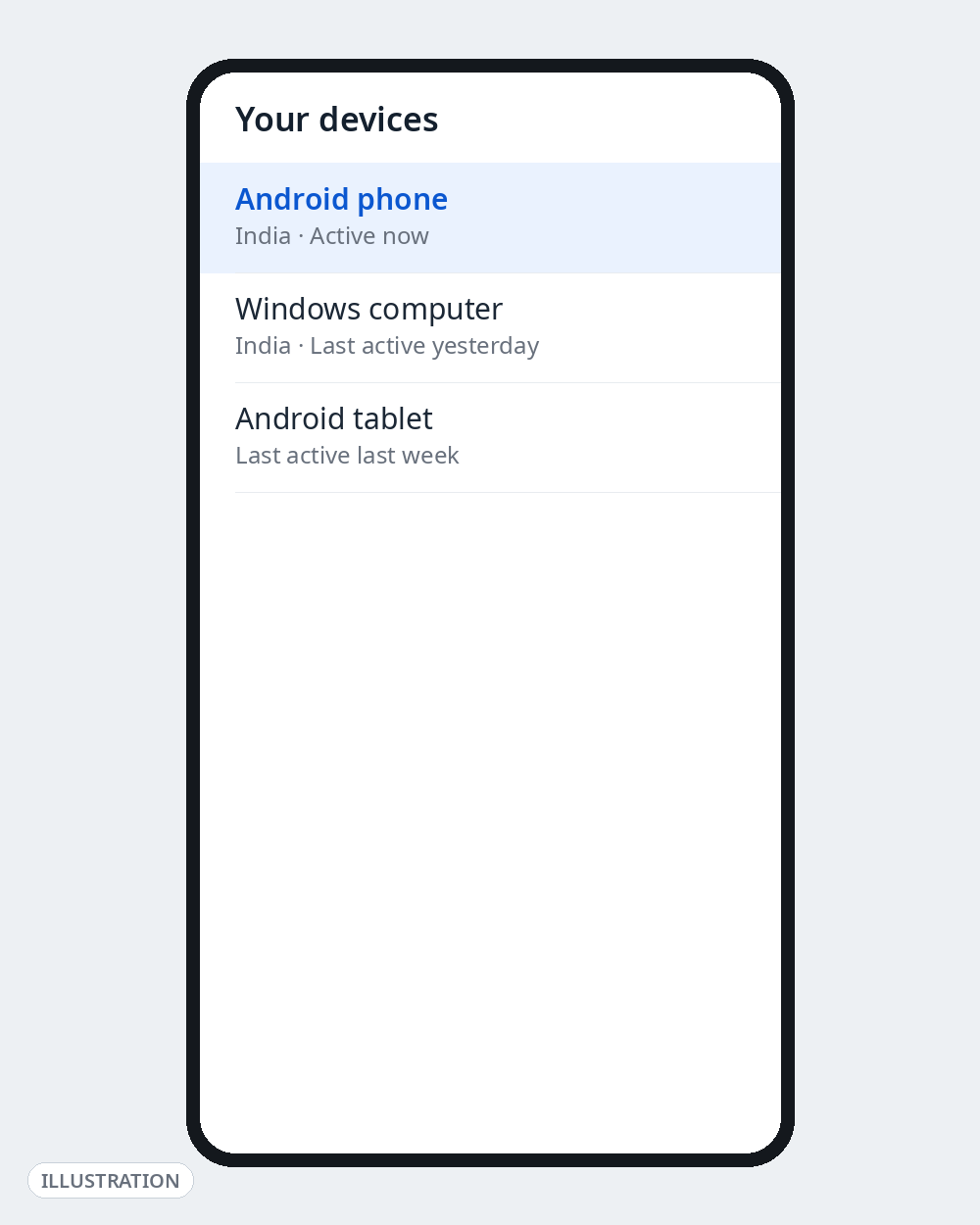
- Your Google account was signed in from a device or place you don’t recognise (check “Your devices” in your Google Account).
- Password-reset emails or OTP/2FA prompts arrive that you didn’t trigger — someone may have your password.
- Messages sent that you didn’t write — WhatsApp, SMS or email asking friends for money or sending links.
- An unknown device appears in WhatsApp → Linked devices. A common real takeover in India: someone tricked you into sharing a registration code and now reads your WhatsApp from their browser.
- Your phone suddenly loses all signal where coverage is normal — and bank or account alerts follow. That pattern suggests a SIM swap: a criminal got your carrier to move your number to their SIM, and is using your SMS codes to reset accounts. Emergency — see below.
- You’re locked out of an account, or its password, recovery email or recovery number changed without you.
The Full Check Routine — Do It in This Order
Ten minutes, no tools, nothing installed. Stop and jump to the response section the moment you find something real.
- Review installed apps. Settings → Apps → See all apps: uninstall anything you don’t recognise or no longer use. A greyed-out Uninstall button usually means device admin — next check; don’t fight it yet.
- Check device admin apps. Settings → Security → Device admin apps (on Samsung: Security and privacy → Other security settings → Device admin apps). Switch off anything that isn’t Find My Device or a work app you know you enrolled.
- Check Accessibility. Settings → Accessibility → Installed apps/services. Everything should be off, or a tool you deliberately use (screen reader, password manager). Turn off, then uninstall, anything unknown.
- Check notification access. Settings → Notifications → Device and app notifications (wording varies). An unknown app here can read every OTP and message preview.
- Check VPN and profiles. Settings → Network and internet → VPN: nothing connected that you didn’t set up. On Samsung, also remove any certificate/profile under Security that you don’t recognise.
- Run a Play Protect scan. Play Store → profile picture → Play Protect → Scan, and confirm Play Protect is on. It can flag or remove known-bad apps, though it isn’t perfect.
- Look at battery and data per app. Settings → Battery → Battery usage, and Settings → Network → App data usage. An app you barely open near the top, or an unknown name using background data, is what you’re looking for.
- Revoke browser notification spam. In Chrome: ⋮ → Settings → Site settings → Notifications. Remove every site you don’t want alerts from — the source of most “virus warning” pop-ups.
- Check your Google account. myaccount.google.com → Security: sign out any device you don’t recognise under “Your devices”, review “Recent security activity”, and confirm your recovery phone and email are still yours — a changed recovery route makes takeovers permanent.
- Check WhatsApp. WhatsApp → Settings → Linked devices: log out every session you don’t recognise. Then switch on two-step verification (Settings → Account). Never share a WhatsApp registration or QR code with anyone — no genuine process needs it.
- Glance at call forwarding in Settings (not by code): Settings → Phone/Call settings → Call forwarding. Unconditional forwarding should be off unless you set it. Conditional forwarding to your carrier’s voicemail is normal.
- Update everything. Install pending system and app updates. Many “weird behaviour” episodes end here, and updates close real security holes.
If You Find Something — Respond in This Order
- Remove the problem. Switch off its device admin (Step 2 above) if it had it, then uninstall the app. Turn off unknown accessibility and notification access, remove unknown VPNs/profiles, and log out unknown WhatsApp devices.
- Change passwords from a clean device — a different phone or a computer you trust, not the suspect phone. Order matters: email first (it’s the master key to every reset), then your Google account, then banking and UPI apps, then social media. Change it anywhere you reused it, turn on 2-step verification wherever offered, and sign out of all other sessions in your Google Account, so a stolen login can’t survive the change.
- If you suspect a SIM swap (sudden signal loss plus account alerts): call your carrier from another phone at once: say your number may have been swapped without permission, and ask them to restore it and lock the account. Then call your bank (number on your card) to block cards and UPI, and report it fast on India’s 1930 helpline or cybercrime.gov.in — speed is what gives banks a chance to freeze the money trail.
- Factory reset — the nuclear option, done right. If a suspicious app can’t be removed, keeps returning, or serious signs persist after Steps 1–2, reset. Back up first (photos, contacts, WhatsApp backup), then Settings → General management (or System) → Reset → Factory data reset. Set up fresh: reinstall apps one by one from the Play Store only, and don’t restore any app you couldn’t identify.
Three things never to do: dial a code someone claims will “remove hacking”; install a “spyware detector” or “phone cleaner” app a video, ad or caller recommends — such apps are a top delivery route for the very malware you’re worried about; or share an OTP, registration code or QR code, or pay anyone who offers to “unhack” your phone.
Go Deeper on Androfyi
- What dial codes actually show: our Android secret codes master list separates the useful codes from the reset-code traps.
- For the forwarding and carrier codes in context, see our USSD codes and Android dial pad secrets guide.
- Then lock the phone down with 7 Android settings that change everything.
- Advanced switches, including what not to touch: our Developer Options power user’s guide.
FAQ
Does *#21# Really Show if My Phone Is Tapped?
No. *#21# shows whether unconditional call forwarding is on for your line, and which number calls forward to. It has no connection to tapping, spyware or surveillance, and can neither detect them nor rule them out. The conditional entries on most phones point to voicemail — completely normal. The only result worth acting on is unconditional forwarding to a number you don’t recognise and never set: turn it off in Settings and ask your carrier.
My Phone Gets Hot and the Battery Drains Fast. Am I Hacked?
Almost certainly not. Heat and drain are overwhelmingly caused by an update still settling, weak signal, an ageing battery, nearly full storage, or one misbehaving app — check per-app battery usage (Step 7) and you’ll usually find a culprit you recognise. Treat them as a reason to look, not as evidence: the serious signs are unknown apps, unknown admin/accessibility access, and account activity you don’t recognise.
Can an App Tell Me Whether My Phone Is Hacked?
There’s no trustworthy one-tap detector, and most apps sold that way are adware or scams themselves. The checks that work are built in: Play Protect’s scan, the admin / accessibility / notification-access lists, your Google Account’s device list, and WhatsApp’s linked devices.
Should I Factory Reset My Phone Straight Away, Just in Case?
No. Resetting first destroys the evidence of what happened, and the real problem is usually an account, not the phone — a reset won’t fix that. Run the routine first; reset only for a concrete reason (an app you can’t remove, access you can’t revoke, signs that survive cleanup), and change passwords from a clean device if an account was involved.
Someone Called and Said My Phone Is Hacked. They Asked Me to Install an App so They Can Fix It. What Do I Do?
Hang up — that call is the attack. A standard fraud pattern in India is getting you to install a screen-sharing or fake “bank support” app, then watching you enter passwords and OTPs. No bank, carrier or company works this way. Already installed one? Uninstall it; if you entered banking details, call your bank (number on your card) and report it on 1930 / cybercrime.gov.in.
Sources Checked for This Guide
Signs, checks and responses were cross-checked against: Google Account Help (“Protect your account if there’s unfamiliar activity” and “Review security-related activity” — device lists, sign-outs, recovery checks), the UK National Cyber Security Centre’s warning-signs guidance for compromised devices and accounts, Mobility Arena’s *#21# explainer (including Apple’s on-record statement that call forwarding is irrelevant to tapping), CERT-In reporting on WhatsApp account hijacking via the device-linking feature, FBI IC3 and carrier guidance on SIM swap fraud (sudden service loss, immediate carrier contact, account locks), and India’s National Cyber Crime Reporting Portal / 1930 helpline for financial fraud reporting. Where online advice conflicted — dial-code “fixes” especially — this guide follows the platform owners (Google, Apple, carriers) over viral posts.