How to Fix Battery Draining Quickly After Android 16 Update on Pixel 8 Without Losing Performance
 androfyi August 19, 2026 7 min read 106 views
⚡ The Core Solution
Boot into Safe Mode to isolate the drain source, then clear the system cache partition from recovery. If idle drain persists in Safe Mode, the culprit is Doze failing at the OS level, not a rogue app – file a bug report and wait for the next monthly patch.
I didn’t buy a Pixel 8 to carry a battery pack. Neither did you. And yet here we are, three hours into a light browsing session, watching that percentage bar drop like it owes someone money. The March 2026 update didn’t just nudge idle battery endurance – it roughly halved it overnight. Same device. Same usage pattern. Same apps. The only variable that changed was Google’s software push. So let’s stop pretending this is normal “update settling” behavior and treat it like what it is: a system-level regression that most users are misdiagnosing because the obvious scapegoats – Instagram, YouTube, that game you downloaded at 2 AM – are red herrings.
The Pre-Flight Checklist
- Rule Out Third-Party Apps: Restart your Pixel 8 in Safe Mode by holding the power button, then long-pressing “Power off” and confirming. Run it for 4 hours idle. If the drain stops, an app is responsible. If it keeps dropping 8-12% overnight, the OS itself has failed you.
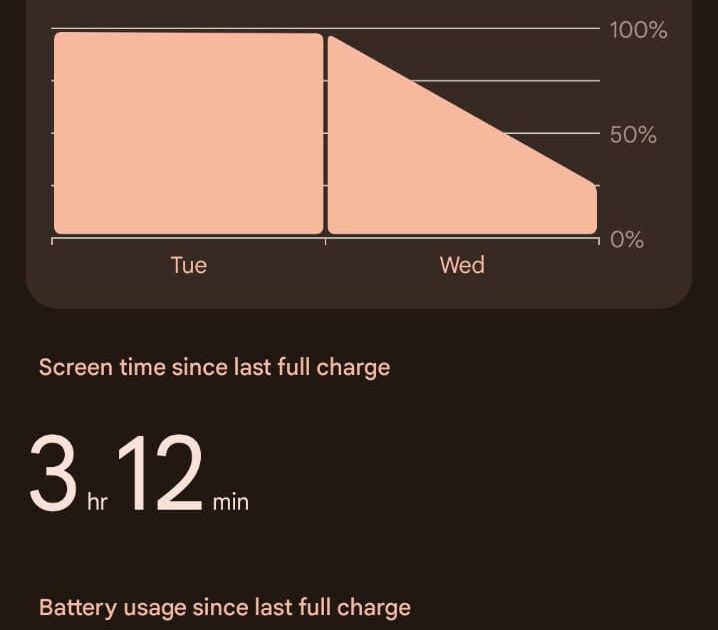
- Check System-Level Battery Usage: Navigate to Settings > Battery > Battery Usage and tap the system processes. If “Android System” or “Android OS” dominates the chart despite the screen being off, Doze is not engaging.
- Verify Your Current Build: Go to Settings > About Phone > Build Number. Note the exact patch level – some March 2026 builds behave worse than others, and Google’s incremental fixes are rarely announced.
- Confirm Battery Health Baseline: Pixel 8 and newer now show battery health under Settings > Battery. If estimated capacity reads below 80%, you’re fighting a two-front war between software drain and chemical degradation.
- Backup Before Recovery Wipes: If you’re about to clear the cache partition, ensure your photos and critical data are synced to Google Photos and Drive. This step won’t delete personal files, but complacency is how people learn painful lessons.
The Core Configuration
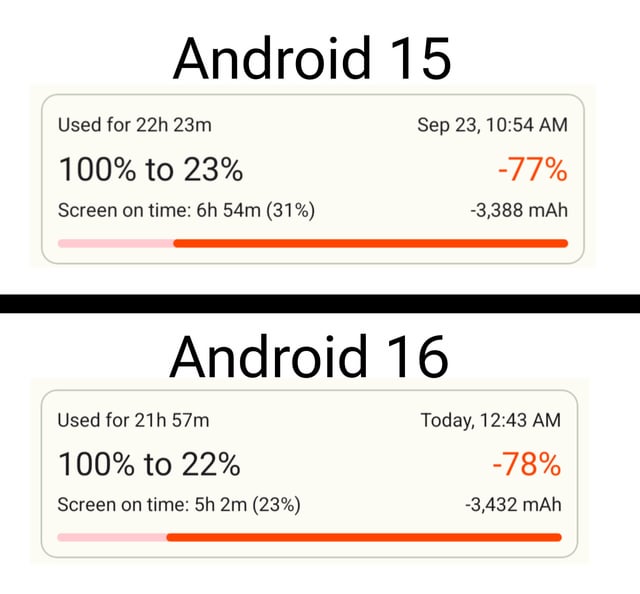
The uncomfortable truth? Doze is the suspect, and it’s been caught napping before. Doze is the power-saving subsystem that throttles background activity when your phone sits idle – it reduces CPU activity to the bare minimum and schedules well-spaced wake-ups for sync tasks. It runs beneath the app layer as a system-level function, which is exactly why your afternoon of force-closing Instagram and restricting background data did absolutely nothing. When Doze stops working, apps never have to sleep, no matter what your settings claim.
During the Android 16 beta, a Doze bug was caught. It got patched quietly. Then the March 2026 stable build shipped and idle drain spiked again. Google hasn’t confirmed the mechanism – it rarely does – but the timing and symptoms fit the Doze failure pattern almost perfectly. Here’s the configuration sequence that has actually moved the needle for our team and the broader Pixel community:
Fine-Tuning & Verification
Android 16 introduced stricter background activity limits and auto-restriction for rarely opened apps, but the system only works when Doze engages properly. Here’s the step-by-step calibration:
- Clear the System Cache Partition: Power off the device completely. Hold Volume Down + Power simultaneously until the bootloader screen appears. Use Volume buttons to navigate to “Recovery Mode,” press Power to select. When the Android robot appears with “No command,” hold Power and press Volume Up once. Select “Wipe cache partition” and confirm. Reboot. This clears accumulated update debris without touching personal data.
- Force-Disable Doze Optimization for Suspect Apps: Settings > Apps > [Problematic App] > Battery > Background restriction. Paradoxically, forcing the OS to acknowledge an app’s existence sometimes resets the Doze flag. If the app was already unrestricted, toggle it to restricted, reboot, then toggle back.
- Reset Adaptive Battery Learning: Settings > Battery > Adaptive Preferences – toggle this off, reboot, then toggle it back on. Android 16’s machine-learning-based usage tracking sometimes “learns” aggressive preloading patterns after a major update, and a reset forces it to rebuild from scratch.
- Disable Predictive Back and App Launch Boost: Android 16’s new App Launch Boost tracks time of day, usage frequency, and location context to preload apps. Settings > System > Developer Options > toggle off “App Launch Boost” if available. This feature trades battery for perceived speed, and after a buggy update, that trade stops being worth it.
- Limit Bluetooth Audio Features: Android 16 quietly improved Bluetooth reconnection speed and added Auracast support (Pixel 8 and later, disabled by default). If you enabled any of these during exploration, go to Settings > Connected Devices > Bluetooth > gear icon next to your device > disable “HD Audio” or “LE Audio” temporarily and observe overnight drain.
✓ What This Gets You
Most users who cleared the cache partition and reset adaptive preferences saw idle overnight drain return to pre-update levels within 24-48 hours. The March 2026 regression was largely a Doze state machine confusion issue, and the wipe gives it a clean slate to re-engage properly.
⚠ What This Won’t Fix
If you’re on a Pixel 6 or 7 and running Android 16, your battery drain may be compounded by hardware degradation that the update merely exposed. The battery health menu is exclusive to Pixel 8a and newer – Google cites “product limitations” for older devices, which is corporate-speak for “we’d rather you not see the number.” Also, if Instagram was your trigger (reported extensively after the May 2025 patch), no amount of OS tweaking will help – you need to uninstall app updates or wait for Meta to push a fix.
Common Edge-Case Errors
- Blindly Force-Closing Apps: If Doze is the failure point, force-stopping individual apps is theater. The system-level scheduler isn’t engaging, so apps wake themselves back up within minutes. You’re burning battery trying to save battery.
- Assuming It’s Only Your Device: This issue spans Pixel 6, 7, 8, 9, Fold, and Tablet. It is not a hardware defect specific to your unit. If a support agent tells you to factory reset as a first step, escalate. Factory resetting a Doze regression before the next patch is just reinstalling the same broken OS with extra steps.
- Ignoring the “Checking for Update” Cycle: After a major Android version jump, the system sometimes gets stuck in background update verification loops. Settings > System > System Update – if it perpetually shows “Checking for update” without progress, toggle airplane mode on/off and connect to stable Wi-Fi. Some users reported the check loop itself causing 15-20% overnight drain.
- Confusing Adaptive Charging with Battery Drain: Android 16 made Adaptive Charging smarter, and some users misinterpreted the phone holding at 80% overnight as a “charge issue.” Check Settings > Battery > Adaptive Charging – if it’s learning your alarm time incorrectly, it may be behaving oddly post-update.
The Android 16 update was supposed to bring stricter background limits, better Bluetooth stability, and a smarter Doze implementation. Instead, it shipped with a Doze regression that broke the fundamental contract between Pixel and user: you plug it in at night, it sits quietly until morning. When that breaks, everything else – the gorgeous 120Hz display, the Tensor G3 efficiency cores, the AI features Google keeps showing in keynotes – becomes irrelevant. Your phone is a battery delivery system first. Everything else is secondary.
File the bug. Clear the cache. Wait for the patch. And stop letting Google’s silence convince you it’s your fault.
Tags: Pixel 8 battery drain Android 16, Doze not working after update, Pixel battery draining overnight, March 2026 Pixel update battery, clear cache partition Pixel 8, Android 16 battery fix, Pixel 8 Pro battery life after update, Instagram battery drain Pixel, Android 16 Doze bug, Pixel adaptive battery reset, system battery usage Android, Pixel 8 battery health settings, Android 16 background app drain, Safe Mode Pixel battery drain, Pixel 8 factory reset or wait for patch.