

15 WhatsApp Hidden Features & Tricks Most People Never Use (2026)
 androfyi October 31, 2026 11 min read 12 views
WhatsApp quietly adds features all year, and most people in India only use the basics. If you try only five things from this list, make it these:
- Chat Lock with a secret code — a chat folder so hidden it appears only when you type your code in the search bar
- Edit sent messages — fix a typo within 15 minutes instead of deleting and resending
- HD photos and videos by default — stop WhatsApp compressing every photo
- Chat Lists — your own filters (Family, Work, Clients) instead of one endless list
- Passkey for your chat backup — protect your Google Drive backup with your fingerprint
Everything below is split by theme — Privacy & security, Chats & messaging, Calls, Status & channels and Accounts & devices — and every feature is real in the official Android app. The last section matters as much: modded apps and scams that promise “extra features” and can cost you your account.
Read this first: WhatsApp rolls features out gradually, even within India. If a menu here isn’t on your phone yet, update WhatsApp from the Play Store and check again in a few days. Menu names shift slightly between versions. Almost everything here works only in the official app.

Privacy & Security
1. Chat Lock — With a Secret Code That Hides the Folder Itself
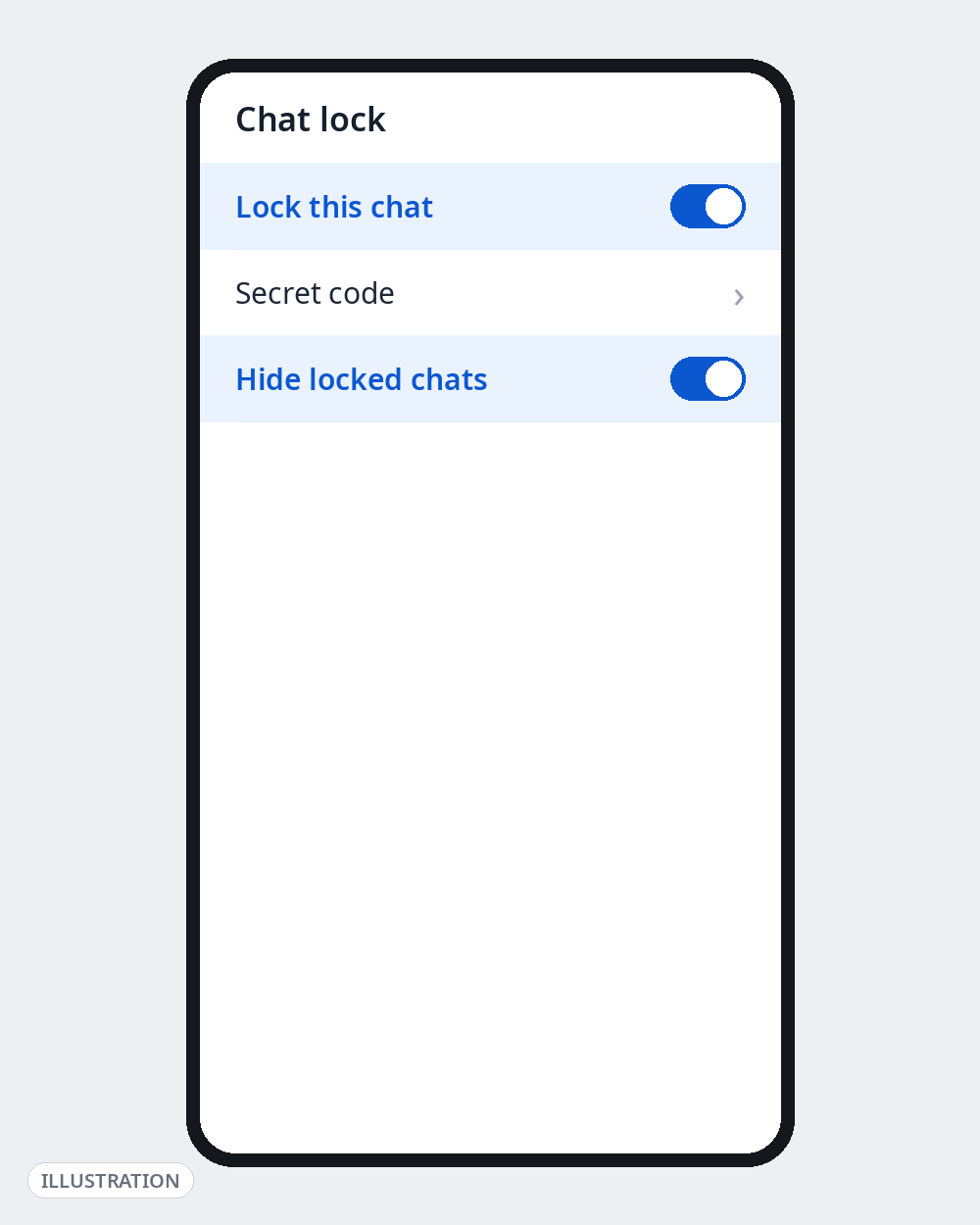
Open the chat → tap the contact or group name → Chat lock → turn it on: the chat moves behind your fingerprint into a Locked chats folder. The part most people miss: open that folder → Settings → Secret code, set a code, and turn on Hide locked chats — the folder vanishes and reappears only when you type the code into the WhatsApp search bar.
2. Advanced Chat Privacy — Stop a Chat Leaving Your Phone
A per-chat setting for sensitive chats and groups: open the chat → tap the name → Advanced chat privacy → turn it on. Nobody in that chat can then export the chat history, media is not auto-saved to their gallery, and messages can’t be used with Meta AI. Honest limits: it doesn’t block screenshots, and someone on a very old version may not be restricted.
3. Disappearing Messages — With a Default Timer for New Chats
Inside any chat: tap the name → Disappearing messages → 24 hours, 7 days or 90 days. The hidden half: Settings → Privacy → Default message timer applies this to every new one-to-one chat automatically. It affects only messages sent after it’s on — and anyone can screenshot before a message vanishes.
4. View Once Works for Voice Notes Too
View Once isn’t just for photos and videos. Record a voice note, swipe up to lock the recording, then tap the View once “1” icon before sending — the listener plays it once, then it’s gone, handy for addresses and one-time details. Don’t use it for anything the other person needs to keep.
5. Passkeys — For Signing in and for Your Backup
Two separate passkeys, both worth having. Account: Settings → Account → Passkeys → Create a passkey, for fingerprint sign-in. Backup — the one that matters more: Settings → Chats → Chat backup → End-to-end encrypted backup → Turn on → Create a passkey. Your Drive backup becomes end-to-end encrypted and unlocks with your fingerprint instead of a password or 64-digit key. Also add an email address to your profile and set a two-step verification PIN (Settings → Account → Two-step verification).
Chats & Messaging
6. Edit a Sent Message (15-Minute Window)
Long-press the message → ⋮ menu → Edit, fix it, resend. You get about 15 minutes; the message shows an “Edited” label, with no edit history for others to view. Works for texts and captions. Later, the only option is Delete for everyone — which itself works for roughly two days.
7. Send Photos and Videos in HD — And Make HD the Default
Attaching a photo or video, tap the HD icon atop the preview screen and choose HD quality (videos up to 720p instead of blurry 360p). Make it permanent: Settings → Storage and data → Media upload quality → HD quality. For pixel-perfect documents (a scanned form, an ID), send as a Document instead — no compression.
8. Chat Lists and Favourites — Filters You Build Yourself
The filter bar at the top of Chats (All, Unread, Favourites, Groups) is just the start. Tap the + to create your own Lists — Work, Family, Clients — and add chats or groups; manage them under Settings → Lists or by long-pressing a list. Set up Favourites first — it doubles as your Calls-tab quick-dial list. A Mentions and replies filter for unread groups where you were tagged is also rolling out.
9. Message Yourself — Your Free Notepad and File Shuttle
Start a new chat and tap your own name atop the contacts list (marked You). The most underrated feature here: a notepad for reminders, a shuttle for files between phone and WhatsApp Web, and a place to draft long messages before pasting them into the real chat. Pin it.
10. Video Notes — 60-Second Round Video Messages
In any chat, tap the microphone icon once — it switches to a video camera icon. Hold it to record a circular video note of up to 60 seconds that plays right inside the chat. Quicker and more personal than typing for birthdays and directions, and it plays inline — no opening needed.
11. Events and Polls — Plan Inside the Group Itself
Two group tools in the attachment menu. Events: in a group, tap + (attach) → Event, add name, date and time — members can RSVP, and the plan stays in the chat info instead of being buried under 300 messages. Polls: attach → Poll and let people vote instead of sending forty replies — one vote each, or multiple answers if you allow it.
Calls
12. Share Your Screen on a Video Call
During a video call, tap Share screen → Start now: the other person sees your screen live — the easiest way to show a parent how to change a setting. Everything on screen is visible, including notifications, so turn on Do Not Disturb first if sharing beyond family.
13. Silence Unknown Callers — And Hide Your IP Address on Calls
Two toggles under Settings → Privacy. Calls → Silence unknown callers: calls from numbers outside your contacts don’t ring — they still appear in your Calls tab, so genuine calls aren’t lost, just silenced. Privacy → Advanced → Protect IP address in calls: calls route through WhatsApp’s servers, hiding your IP address (and rough location) from the caller — though call quality can dip slightly.
Status & Channels
14. Channels and Communities — WhatsApp’s One-Way Broadcast Layer
Open the Updates tab (where Status lives) and scroll to Channels: follow news outlets, sports teams and official accounts — updates arrive here, separate from your chats, and following does not share your phone number with channel admins. You can also create a channel from the + menu. Communities (the tab beside Chats) groups related groups under one umbrella — a society’s security, maintenance and buy-sell groups — with one announcement group for all.

Accounts & Devices
15. Two Accounts on One Phone — And Your Account on a Second Phone
Two features people confuse. Two accounts, one phone: Settings → the arrow next to your name → Add account, and register a second number — you need its verification code, so a second SIM or eSIM is the usual route in India. Accounts keep separate chats and settings. One account, second phone (companion mode): on a spare phone’s login screen tap ⋮ → Link as companion device, then link via Settings → Linked devices on your main phone. Up to four devices can be linked, working even when your main phone is offline.
What About Meta AI?
Meta AI is available in India — rolled out to WhatsApp users here from mid-2024, English first, Hindi added since. Use it via the Meta AI icon, or summon it in a group with @Meta AI. Three caveats: you can’t remove the Meta AI button; chats with Meta AI are not end-to-end encrypted like chats with people, so tell it nothing sensitive; and the viral forward claiming “Meta AI secretly reads all your chats unless you change a setting” is false — Meta AI only sees what you send or tag to it. To keep it out of one chat, use Advanced chat privacy (feature 2).
Dangerous — Modded WhatsApp and Scams
These “features” cost people their accounts and money — listed so you can recognise and avoid them, not to try them.
| Threat | What actually happens |
|---|---|
| GB WhatsApp, FM WhatsApp, WhatsApp Plus and other mods | Unofficial apps promising themes and “hide online status” tricks. WhatsApp bans accounts using them — temporary first, permanent if you don’t switch back. No end-to-end encryption guarantee, and many mod APKs carry malware. |
| “WhatsApp Gold” upgrade messages | A long-running hoax inviting you to a premium “WhatsApp Gold” via a link. There is no WhatsApp Gold — the link leads to malware or phishing. |
| Someone asking for your 6-digit code | India’s most damaging WhatsApp scam. A “friend” (already hijacked) or fake “WhatsApp support” asks for the 6-digit SMS code that just arrived. That code is your account — share it and the scammer takes over and messages your contacts asking for money. WhatsApp never asks for it. |
| Forwarded shutdown/charge warnings | “WhatsApp will shut down tonight / start charging unless you forward this” — decade-old chain-letter hoaxes. Real announcements come from WhatsApp’s official channel, never a forward. |
| “See who viewed your profile” / deleted-message apps | Profile-viewer apps can’t work — WhatsApp provides no such data. “Recover deleted messages” apps read all your notifications, handing your messages to an unknown developer. |
Want extra safety? It’s already in the official app — chat lock, disappearing messages, a two-step PIN and passkeys (features 1, 3, 5) cover almost everything mods pretend to offer.
Tricks That Don’t Actually Work (Any More)
- “Turn off read receipts and nobody can tell.” Half true: Settings → Privacy → Read receipts hides blue ticks one-to-one — but receipts are always on in groups, and voice messages always show when played.
- “Read it from the notification / in airplane mode so it stays unread.” Notifications preview without marking read — but show only the start of long messages, and opening the chat marks it read. Airplane-mode tricks are unreliable; WhatsApp can sync the receipt on reconnect.
- “A secret code unlocks hidden WhatsApp menus.” There are no dial codes for WhatsApp features. Sites listing one funnel you to ads, a mod APK, or a scam from the table above.
Go Deeper on Androfyi
- Phone-wide settings that make WhatsApp (and everything else) better: 7 Android settings that change everything.
- New to dial codes? Start with our USSD codes and Android dial pad secrets guide.
- Codes that open your phone’s own hidden test menus: the Android secret codes master list.
- Advanced, fully reversible tweaks: our Developer Options power user’s guide.
FAQ
Why Can’t I See Some of These Features on My Phone?
WhatsApp releases features in waves — two phones in the same house can be weeks apart. Update from the Play Store, restart the app, and check again in some days. If a feature here is “rolling out” (like the Mentions and replies filter), nothing is wrong; it hasn’t reached you yet.
Is Meta AI Reading My Private WhatsApp Chats?
No. Messages between people are end-to-end encrypted; Meta AI sees only what someone sends it or tags it into with @Meta AI, and viral warnings claiming otherwise have been fact-checked and found false. Chats with Meta AI itself aren’t encrypted private chats, though — keep passwords and personal details out.
Can I Run Two WhatsApp Numbers on One Phone?
Yes, officially: Settings → the arrow next to your name → Add account. You need a second number and a way to receive its code — most people in India use a dual-SIM phone or eSIM. Simpler and safer than app-cloning or mods.
Will Using GB WhatsApp Really Get Me Banned?
Yes — WhatsApp’s own policy. Accounts on unsupported apps get temporarily banned; don’t switch to the official app and the ban can become permanent. Mods can’t guarantee end-to-end encryption either, whatever their download pages claim.
Someone Just Asked Me for a 6-Digit WhatsApp Code. What Do I Do?
Nothing — that’s the correct response. Never share the SMS registration code or your two-step PIN with anyone, including people claiming to be WhatsApp, a bank, or a friend in trouble. If you already shared it and got logged out, re-register immediately in the official app and turn on two-step verification.
Sources Checked for This Guide
Features and steps were cross-checked against WhatsApp’s official blog announcements (Chat Lock and its secret code, Lists, Advanced Chat Privacy, multiple accounts) and Help Center pages (view-once voice messages, message editing, silence unknown callers, IP protection in calls, encrypted backups), Gadgets 360’s passkey backup walkthrough, 9to5Mac on WhatsApp’s October 2026 group-features announcement, Tech ARP’s fact-check of the viral “Meta AI reads your chats” claim, and afaqs on Meta AI’s India rollout. Where a feature is still rolling out or menus vary, that is stated in the article rather than smoothed over.


