15 Samsung One UI Hidden Settings You Should Change Today
 androfyi October 31, 2026 11 min read 4 views
In a hurry? Start with these five — built into every recent Galaxy, under a minute each:
- Notification history — Settings → Notifications → Advanced settings → Notification history. Saves the last 24 hours of notifications, including ones you swiped away by mistake. Off until you turn it on.
- Battery protection — Settings → Battery → Battery protection. Stops your battery sitting at a stressful full charge all night. Pick Adaptive and the phone does the thinking.
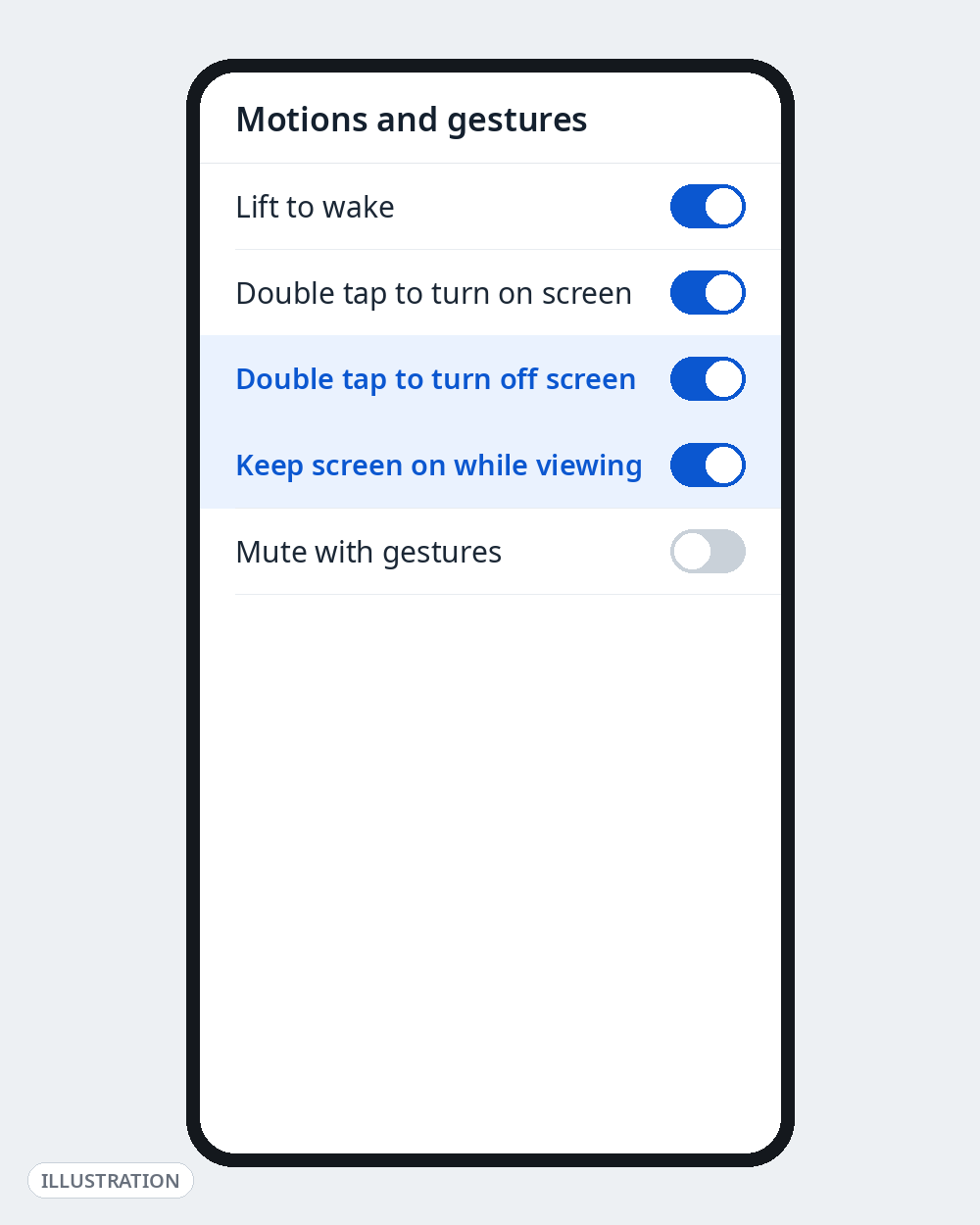
- Double-tap to turn off screen — Settings → Advanced features → Motions and gestures. Double-tap an empty space on the Home or Lock screen to sleep the phone, no Side button needed.
- Auto Blocker — Settings → Security and privacy → Auto Blocker. Samsung’s built-in shield against dodgy app installs, malicious USB commands and malware hidden in message images.
- Good Lock — Samsung’s own free customisation app in the Galaxy Store. It unlocks a second layer of settings that One UI does not expose on its own.
Each entry below says whether it is built in or needs Good Lock, so you always know what you are installing (or not).
Read this first: Paths are written for One UI 7 and One UI 8. Samsung reorganised Settings in One UI 7 (the old “Battery and device care” is now just “Device care”, among other moves), so on One UI 6 or older a setting may sit one menu up or down. Availability also varies by model: some Galaxy AI and lock-screen features never reach A-series and M-series phones. If a menu here is missing on your phone, that is a model or version limit, not a fault. Fastest check on any Galaxy: type the setting’s name into the search bar at the top of Settings.
Display and Gestures
1. Double-Tap to Turn the Screen On and Off (Built In)
Settings → Advanced features → Motions and gestures → Double tap to turn on screen and Double tap to turn off screen. “Off” works by double-tapping an empty area of the Home or Lock screen — faster one-handed than reaching for the Side button, and kinder to it.
2. Keep Screen On While Viewing (Built In)
Settings → Advanced features → Motions and gestures → Keep screen on while viewing. The front camera checks whether you are still looking at the phone and stops the screen timing out mid-article. It ends the “keep tapping to stay awake while reading” habit.
3. Make the Side Button Open the Camera (Built In)
Settings → Advanced features → Side button → Double press. Camera is the default on most models, but the double-press can open any app, and you can also set what a long-press does — power menu instead of waking Bixby is a popular change.
4. Reduce Animations (Built In)
Settings → Accessibility → Visibility enhancements → Reduce animations (on some versions the same switch is called Remove animations). The phone is not actually faster, but it feels noticeably snappier with the transition effects stripped out, especially on older or budget models. For finer control (0.5x animation speeds instead of on/off), see the Developer Options guide linked at the end.
5. Labs: Force Any App into Split Screen (Built In)
Settings → Advanced features → Labs → Multi window for all apps. Labs is Samsung’s drawer of experimental switches most owners never open. This one allows split-screen and pop-up view for apps whose developers never added support. Most apps behave; a few may render oddly, which is why it lives in Labs, off by default.
6. Edge Panels and the Now Bar (Built In)
Settings → Display → Edge panels enables the swipe-in handle with app shortcuts, the clipboard and Smart select tools (screenshot cropping, text extraction). On One UI 7 and later, also check Settings → Lock screen and AOD → Now bar: it puts live activities — music, timers, deliveries, rides — on your lock screen, and you choose which apps may appear. Its companion Now Brief (a personalised daily briefing) is limited to certain flagship models with Galaxy AI, so many phones get the Now Bar without it.
Notifications and Sound
7. Notification History (Built In)
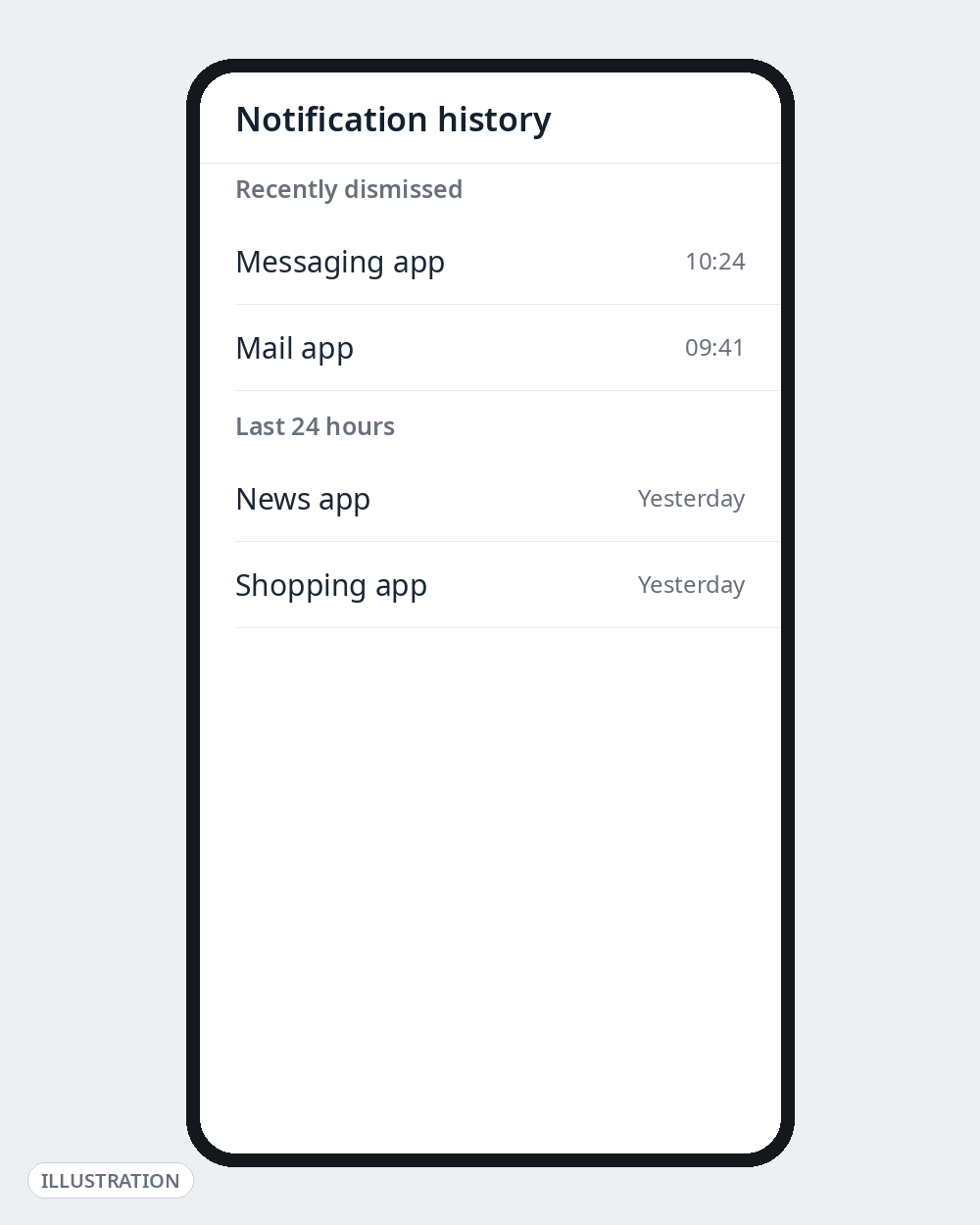
Settings → Notifications → Advanced settings → Notification history — switch it on. This screen then keeps everything from the last 24 hours, sorted by app, including dismissed notifications and — a side effect many people enable it for — the text of WhatsApp messages a sender later deletes (text only; it cannot recover photos or voice notes). Two honest limits: it records nothing from before you enabled it, and turning it off wipes what it saved. For a longer, filterable history, Samsung’s answer is the NotiStar module inside Good Lock.
8. Separate App Sound (Built In)
Settings → Sounds and vibration → Separate app sound. Pick one app and one output: navigation stays on the phone speaker while music plays on a Bluetooth speaker, or Spotify goes to the speaker while everything else stays on the phone. One of One UI’s oldest hidden gems, and almost nobody knows it exists.
9. Modes and Routines (Built In)
Settings → Modes and Routines. Modes are ready-made profiles (Sleep, Work, Driving, Exercise); Routines are “If this, then that” rules you build: if I arrive at work, then vibrate only and Do Not Disturb on; if it is 11 pm and charging, then enable battery protection overnight. Most owners change the same handful of settings by hand every day — this is where the phone starts doing it for them.
Battery
10. Battery Protection: Basic, Adaptive or Maximum (Built In)
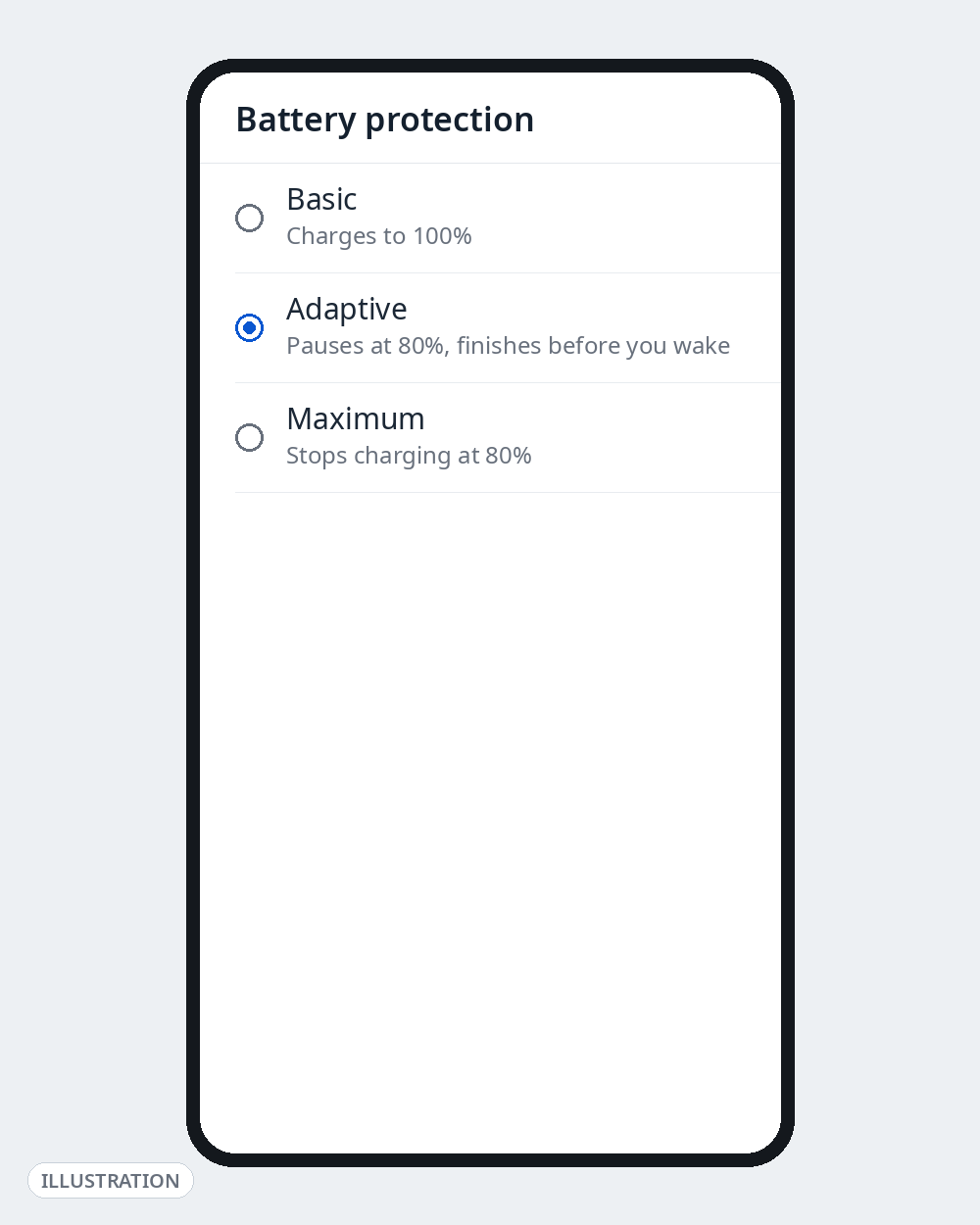
Settings → Battery → Battery protection. Three modes, introduced with One UI 6.1 and refined since:
- Basic — charges to 100%, then stops and only tops up again once the level falls to 95%.
- Adaptive — holds the charge around 80% while you sleep, then finishes to full shortly before your usual wake-up time, learned from your usage. On some One UI 8 builds and regions the same mode is labelled Sleep time protection.
- Maximum — never charges past a limit you set: fixed at 80% on One UI 6.1, but since One UI 7 you can pick 80%, 85%, 90% or 95%.
Adaptive is the set-and-forget choice for most people; Maximum suits phones that live on a charger. While protection is actively limiting a charge, One UI 7 and later may show a small shield icon in the status bar — that is this setting working, not a warning.
11. RAM Plus — Check It, Don’t Assume It Helps (Built In)
Settings → Device care → Memory → RAM Plus (or search Settings for “RAM Plus”). RAM Plus reserves part of your storage as virtual memory for background apps, and Samsung enables it by default. The honest picture from hands-on testing: on phones with 8 GB of real RAM or more, turning it off makes little to no difference either way; on budget models with 4–6 GB it can help keep background apps alive. Treat viral “turn off RAM Plus to double your speed” claims with suspicion.
Privacy and Security
12. Auto Blocker (Built In)
Settings → Security and privacy → Auto Blocker. Introduced with One UI 6 and on by default on devices that shipped with One UI 6.1.1 or later — but off on plenty of older phones that were updated, so check. With it on, the phone blocks app installs from outside the Play Store and Galaxy Store, stops a connected USB cable sending commands or pushing system software (the public-charging-station attack), and screens message images for malware via Message Guard. An optional Maximum restrictions level goes further. You must authenticate to turn it off — and sideloaders will need to, temporarily, because blocking unknown-source installs is the entire point.
13. Secure Folder (Built In)
Settings → Security and privacy → More security settings → Secure Folder (on older One UI it sat under “Biometrics and security”). A separate, Knox-encrypted space with its own lock: its own app copies, photos and files, invisible from your main app drawer and Gallery. Use it for private photos and documents, or a second copy of a messaging app on a different account. Setup needs a Samsung account, and you can hide the Secure Folder icon itself afterwards.
Good Lock Superpowers (Needs Good Lock — Free, from Samsung)
Good Lock is Samsung’s own official app, not a third-party mod: download it free from the Galaxy Store (also on the Play Store in supported regions), then install individual modules from inside it, each unlocking settings for a different part of the phone. India note: India has been a supported Good Lock market for years, and Samsung widened availability to essentially all countries alongside One UI 7.
14. Home Up — The Home Screen Settings One UI Hides (Good Lock)
Install Home Up inside Good Lock. It adds the launcher controls stock One UI withholds: finer home-screen grid sizes, folder styles, app-drawer layout changes,
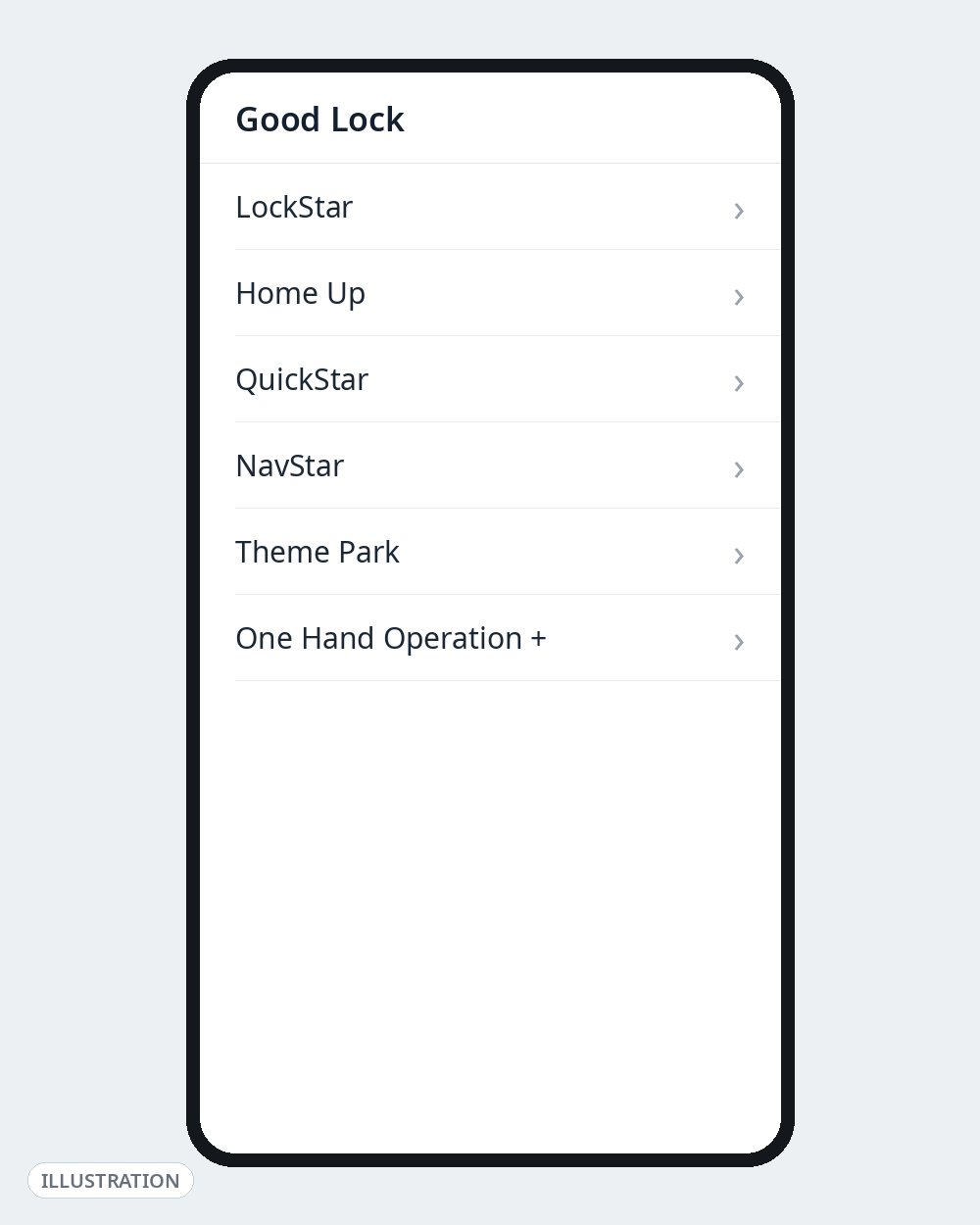
15. The Module Starter Pack: LockStar, QuickStar, NavStar, Camera Assistant, RegiStar (Good Lock)
Five more modules, one line each — install from inside Good Lock as needed:
- LockStar — rearrange the lock screen and Always On Display: move the clock, restyle notifications, swap the shortcuts.
- QuickStar — customise the quick panel and clean up the status bar, including hiding icons you never use.
- NavStar — extra navigation-bar and gesture options, including custom buttons on button navigation.
- Camera Assistant — camera settings the stock app hides, such as auto lens switching control and faster shutter behaviour (features vary by model).
- RegiStar — reorder the main Settings menu itself, and on supported models add a back-tap gesture: double or triple tap on the phone’s back to trigger an action.
Go Deeper on Androfyi
- Hidden menus of a different kind — dial codes that open test and service screens: our Samsung secret codes list.
- The settings that matter on any Android, Samsung or not: 7 Android settings that change everything.
- Animation scales, background-process limits and other fully reversible power-user options: our Developer Options power user’s guide.
- Why the same feature behaves differently across brands: the Android secret codes list.
FAQ
Are These Settings Safe to Change? Can I Undo Them?
Yes. Everything here is an official Samsung setting or an official Samsung app, and every change is a toggle you can reverse where you made it — no root, no computer, no dial codes. The one partial exception is Secure Folder: deleting it deletes what is inside, so move files out first if you ever remove it.
Why Is a Setting from This List Missing on My Galaxy?
Three usual causes: your One UI version is older (selectable Battery protection limits and the Now Bar need One UI 7), your model is excluded (Galaxy AI features and Now Brief are flagship-limited), or your carrier/region build hides it. Try the Settings search bar first; if it is not there either, your phone does not have it.
Is Good Lock Safe? Is It Really from Samsung?
Yes — Good Lock is developed and published by Samsung Electronics and distributed through Samsung’s own Galaxy Store. It is free and its modules are the officially supported way to customise parts of One UI that have no stock settings. Get it from the Galaxy Store or Play Store, not an APK site: copies on third-party sites are a common malware route, and Auto Blocker (setting 12) will rightly block those installs.
Good Lock Is Not in My Galaxy Store. What Now?
Availability is set by Samsung per country and model. India and most major markets are supported, and availability widened with One UI 7, but some region builds and entry-level models still miss out, and there is no official workaround. We do not recommend sideloading module APKs from unknown sites.
Will Battery Protection Actually Make My Battery Last Longer?
It slows one specific kind of wear: the stress of sitting at or near 100% charge for hours, which is what overnight charging does. It will not revive an already worn battery, and it cannot help if your drain comes from apps or poor signal. Think of it as cheap insurance you set once — Adaptive in particular costs you nothing day to day, because the phone is full again by the time you wake up.
Sources Checked for This Guide
Settings and paths were cross-checked against: Samsung’s official support pages on Galaxy battery protection (Basic/Adaptive/Maximum behaviour, and the selectable 80–95% Maximum limits from One UI 7); Samsung Galaxy user manuals (Advanced features → Motions and gestures paths for double-tap and Keep screen on while viewing); SammyGuru’s hidden-features and Good Lock module guides (Separate app sound path; module roles for Home Up, LockStar, QuickStar, NavStar, Camera Assistant, RegiStar); Engadget and Android Police on Auto Blocker (One UI 6 introduction, default-on from One UI 6.1.1, Maximum restrictions); Samsung Members community tips (notification history path, One UI 7 optimisation notes); Sammy Fans and Gadgets 360 (Good Lock availability in India and its One UI 7 expansion); and Android Police’s RAM Plus testing. Where sources disagreed on a name or path, that is stated in the article rather than smoothed over.