Fixed: STOP Using Your iPhone Like This… 17 Pro Hidden … (The Fast Way)
 androfyi
May 2, 2026
4 min read
226 views
androfyi
May 2, 2026
4 min read
226 views
⚡ The 30-Second Fix
Stop letting your iPhone 17 Pro drain battery, lag, or overheat by tweaking just a few hidden settings. These quick adjustments unlock smoother performance, longer battery life, and smarter usability – no jailbreak needed.
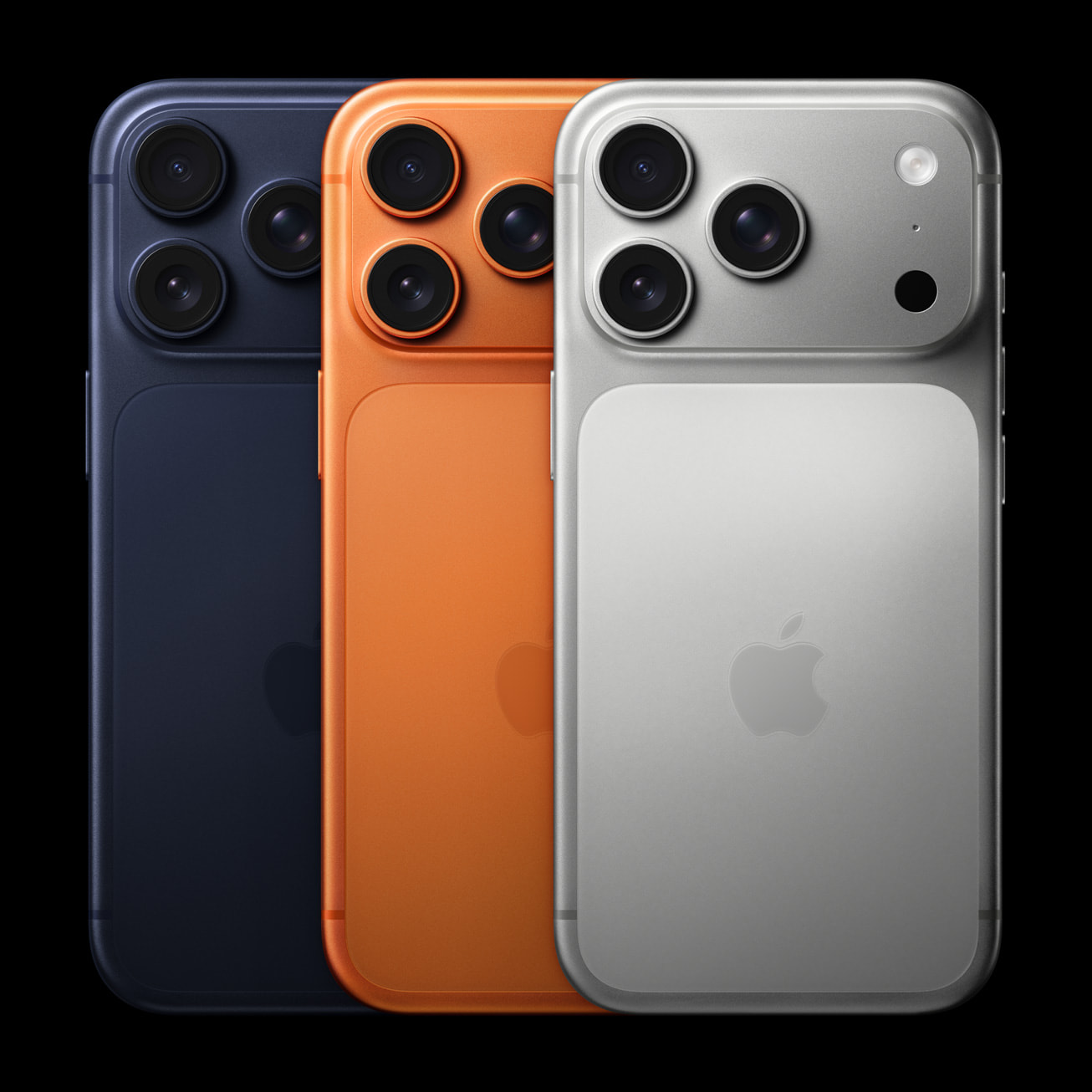
If you’ve just upgraded to the iPhone 17 Pro (or Pro Max), you might be unknowingly using it in ways that hurt performance, battery health, or even security. Apple packs powerful hardware into these devices – the A19 Pro chip, vapor chamber cooling, 120Hz ProMotion display, and ProRes RAW video – but default settings often don’t let you take full advantage. Worse, some common habits (like maxing out charge or leaving Control Centre on the lock screen) can shorten your phone’s lifespan or expose your data.
What You Need
- iPhone 17 Pro or Pro Max running iOS 26 or later
- Access to Settings app (no computer or extra tools required)
- 5 minutes of free time – seriously, it’s that fast
Phase 1: Setup
Before diving into settings, make sure your iPhone is updated. Go to Settings > General > Software Update and install any pending updates. This ensures you have the latest optimizations for the A19 Pro chip and iOS 26’s “Liquid Glass” interface.
Phase 2: The Settings
These are the hidden tweaks most users miss – but pros use daily:
- Haptic Touch Speed: Go to Settings > Accessibility > Touch > Haptic Touch and switch from “Default” to “Fast.” This makes app previews and shortcuts respond instantly – no more waiting half a second to peek at a link.
- Lock Screen Security: Disable Control Centre access when locked. Head to Settings > Face ID & Passcode > Allow Access When Locked and turn off Control Centre. Prevents accidental taps or snooping if your phone is lost.
- Battery Health Boost: Set a custom charge limit. In Settings > Battery > Charging, drag the Charge Limit slider down to 80%. This reduces long-term wear – especially useful if you charge overnight. (Keep Optimized Battery Charging ON too.)
- ProMotion Always-On Display: Make sure your Always-On Display uses the full 120Hz refresh rate. Go to Settings > Display & Brightness > Always On and enable Show Notifications and Raise to Wake for seamless glances without unlocking.
- USB-C Transfer Speeds: Only the iPhone 17 Pro and Pro Max support USB 3 speeds (up to 10Gbps). If you transfer large ProRes files or photos, avoid the base iPhone 17 or Air – they’re limited to slower USB 2 speeds.
- Thermal Management: The new aluminum unibody + vapor chamber helps, but heavy gaming or 4K/120fps recording can still cause throttling. Close background apps via the app switcher before intensive tasks.
- Camera Zoom Logic: When shooting, stick to 0.5x, 1x, or 4x for full-sensor capture (24MP output). Avoid 2x or 8x unless necessary – they use digital cropping, not optical zoom, which can reduce quality.
- Satellite SOS: Test Emergency SOS via satellite in a clear outdoor area. Go to Settings > Emergency SOS > Send Message with Satellite and follow the demo. Free for two years on iPhone 14 and later – including your 17 Pro.
Troubleshooting
- “My battery still drains fast!” Check Settings > Battery to see which apps use background power. Disable Background App Refresh for non-essential apps like social media.
- “Haptic Touch feels sluggish” Double-check you selected “Fast” in Accessibility settings. Some users accidentally revert to Default after updates.
- “USB-C transfers are slow” Confirm you’re using a USB 3.2 Gen 2 cable (look for 10Gbps rating). The iPhone 17 Pro supports it – but cheap cables won’t.
- “Overheating during video calls” The aluminum frame disperses heat better than titanium, but Center Stage and 4K recording still generate warmth. Take breaks or lower resolution temporarily.
Warning: Avoid third-party chargers claiming “60W fast charging.” Only Apple’s Dynamic Power Adapter (40W, bursts to 60W) is certified for safe 25W MagSafe charging. Others may damage battery health.
Pro Tip: Use Focus Mode Home Screens to match your workflow. Create a “Work” screen with calendar and notes widgets, and a “Creative” screen with camera and editing apps. Your iPhone switches automatically when Focus activates.
Tags: iPhone 17 Pro, iOS 26, hidden settings, battery life, Haptic Touch, ProMotion, USB-C speed, A19 Pro chip, vapor chamber cooling, MagSafe charging, satellite SOS, camera zoom, thermal throttling, Focus modes, Apple settings tips