
How to I changed 12 settings on my Android phone to extend its battery life … (Video + Steps)
 androfyi
April 3, 2026
3 min read
243 views
androfyi
April 3, 2026
3 min read
243 views
We’ve all been there – your Android phone dips below 20% just when you need it most. After weeks of testing and tweaking, I discovered that small changes in system settings can add hours back to your day. Below, I walk through the 12 adjustments that made the biggest difference for me – and how you can replicate them in minutes.
Quick Checklist
- Lower screen brightness: Reduce manual brightness or enable adaptive brightness.
- Shorten screen timeout: Set display to turn off after 15–30 seconds of inactivity.
- Enable Dark Mode: Especially effective on AMOLED screens – black pixels use less power.
- Turn off Always On Display: Saves up to 10% daily battery if you don’t need constant time checks.
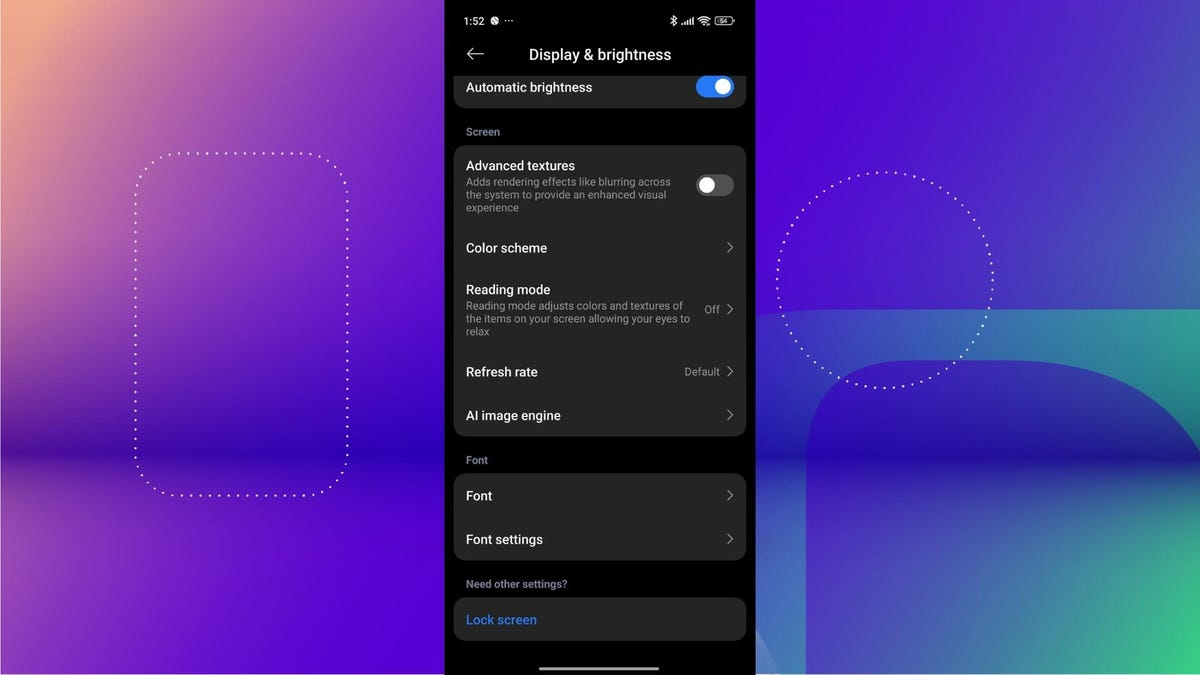
- Switch to 60Hz refresh rate: High refresh rates (90Hz/120Hz) drain battery faster – drop to standard mode.
- Activate Adaptive Battery: Lets Android learn your habits and limit background activity for rarely used apps.
- Disable unnecessary vibrations & haptics: Keyboard taps, touch feedback, and system vibrations add up.
- Use Airplane Mode + Wi-Fi in weak signal areas: Stops your phone from constantly searching for cellular towers.
- Manually select your network: Prevents endless scanning for stronger signals.
- Restrict background app refresh: Especially for social media, email, and weather apps.
- Turn off Bluetooth, GPS, and NFC when unused: These radios sip power even when idle.
- Spot and limit power-hungry apps: Check Battery Usage stats and force-stop or uninstall offenders.
The First Step

Start by opening Settings > Battery. This is your command center. Look for “Battery Usage” to see which apps are draining power overnight or in the background. You might be surprised – sometimes a forgotten weather widget or a rarely used shopping app is the culprit.
Step 2: Execution
Work through the checklist above one by one. Most changes take under 30 seconds:
- For screen settings, go to Display > Brightness level and Screen timeout.
- To enable Dark Mode, search “Dark theme” in Settings or find it under Display > Themes.
- Find Adaptive Battery under Battery > Adaptive Preferences (or use the Settings search bar).
- Disable Always On Display in Lock Screen or Display settings – varies by brand.
- Switch network modes via Network & Internet > Mobile Network > Preferred Network Type.
Step 3: Verification
After applying all 12 tweaks, monitor your battery for 24–48 hours. Most users report a 25–35% improvement in daily runtime – especially noticeable during standby. If you’re still seeing drain, revisit the Battery Usage screen: some apps may need manual force-stops or permission restrictions (like location access set to “While using the app” only).
Remember: optimal battery life isn’t about sacrificing features – it’s about aligning your phone’s behavior with how you actually use it. With these settings dialed in, my mid-tier Android now easily lasts a full day and a half, even with heavy messaging and navigation.
Tags: Android battery life, extend battery Android, dark mode battery save, adaptive battery, screen timeout, airplane mode Wi-Fi, background app refresh, power saving mode, AMOLED battery tips, reduce haptic feedback, manual network selection, disable always on display, lower refresh rate, battery optimization tools, spot battery drain apps