These 9 hidden Android settings will give your phone longer battery life (Video + Steps)
 androfyi
May 28, 2026
4 min read
198 views
androfyi
May 28, 2026
4 min read
198 views
Your Android phone is packed with power-hungry features – many of which you don’t even realize are running in the background. From always-on displays to aggressive app syncing, these hidden settings can silently drain your battery throughout the day. The good news? A few smart tweaks can add hours of extra usage without sacrificing usability. Below, we’ll walk you through nine under-the-radar Android settings that deliver real battery savings – plus a quick video demo to show you exactly where to find them.
Quick Checklist
- Disable Now Playing: Stops your Pixel from constantly listening for songs.
- Enable Dark Mode: Cuts power use on OLED screens by turning off black pixels.
- Turn On Adaptive Battery: Learns your habits to limit background app drain.
- Turn Off Mobile Data Always Active: Prevents Wi-Fi and mobile data from overlapping unnecessarily.
- Disable Always On Display (AOD): Stops the lock screen from glowing 24/7.
- Reduce Screen Resolution: Lowers GPU workload for marginal but meaningful gains.
- Shorten Screen Timeout: Turns off the display faster when idle.
- Put Rarely Used Apps to Sleep: Blocks background activity for apps you don’t use daily.
- Disable Auto-Sync for Non-Essential Accounts: Stops apps like Samsung Internet from pinging servers constantly.
Phase 1: Setup
Before diving into advanced tweaks, make sure Developer Options is enabled – this unlocks key performance settings. Go to Settings > About Phone and tap Build Number seven times until you see a toast message saying “You are now a developer!” This grants access to hidden display and animation controls.
Step 2: Execution
Now it’s time to apply the battery-saving changes. Start with the easiest wins:
- Now Playing: On Pixels, go to Settings > Display > Lock Screen > Now Playing and toggle it off. Alternatively, open the Now Playing app and disable “Use Now Playing.”
- Dark Mode: Navigate to Settings > Display and enable Dark Mode. On Samsung devices, it’s often right at the top of the Display menu.
- Adaptive Battery: Use the Settings search bar to find “Adaptive Battery” and toggle it on. It learns which apps you use least and restricts their background activity.
- Always On Display: Search for “AOD” in Settings or go to Settings > Display. Turn it off – or at least set it to show only when you tap the screen.
- Screen Timeout: Head to Settings > Display > Screen Timeout and choose 30 seconds or less. Every second counts!
For deeper optimization:
- Mobile Data Always Active: In Developer Options, find “Mobile data always active” and disable it. This prevents your phone from maintaining dual connections (Wi-Fi + cellular) when unnecessary.
- Display Tweaks: Still in Developer Options, increase Display Density (fits more content), reduce Window/Transition/Animator scales to 0.5x, and lower Screen Resolution to 1080p if your phone runs higher by default.
- App Sleep: Go to Settings > Battery and Device Care > Battery, tap the battery graph, select rarely used apps, and choose “Put to sleep” or “Deep sleep.”
- Auto-Sync: Visit Settings > Accounts, pick non-critical accounts (like secondary email or social media), and toggle off “Sync account.”
Step 3: Verification
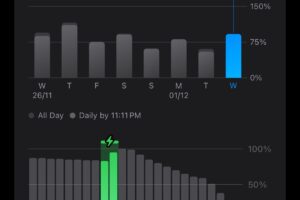
After applying these changes, monitor your battery usage over 24–48 hours. Go to Settings > Battery and check the battery graph. You should see reduced drain during standby and lighter loads during active use. If an app feels sluggish (e.g., delayed notifications), revisit its sleep settings – but in most cases, the trade-off is negligible for the battery gain.
Tags: Android battery life, hidden Android settings, extend battery life, dark mode Android, adaptive battery, always on display off, screen timeout, developer options, app sleep mode, mobile data always active, OLED battery saving, Pixel battery tips, Samsung battery optimization, reduce screen resolution, disable auto sync