The Complete Configuration Blueprint for Battery drains faster since Android 16 update
 androfyi
June 14, 2026
5 min read
221 views
androfyi
June 14, 2026
5 min read
221 views
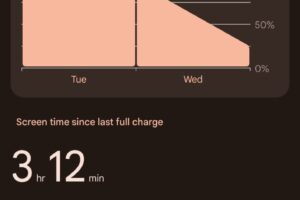
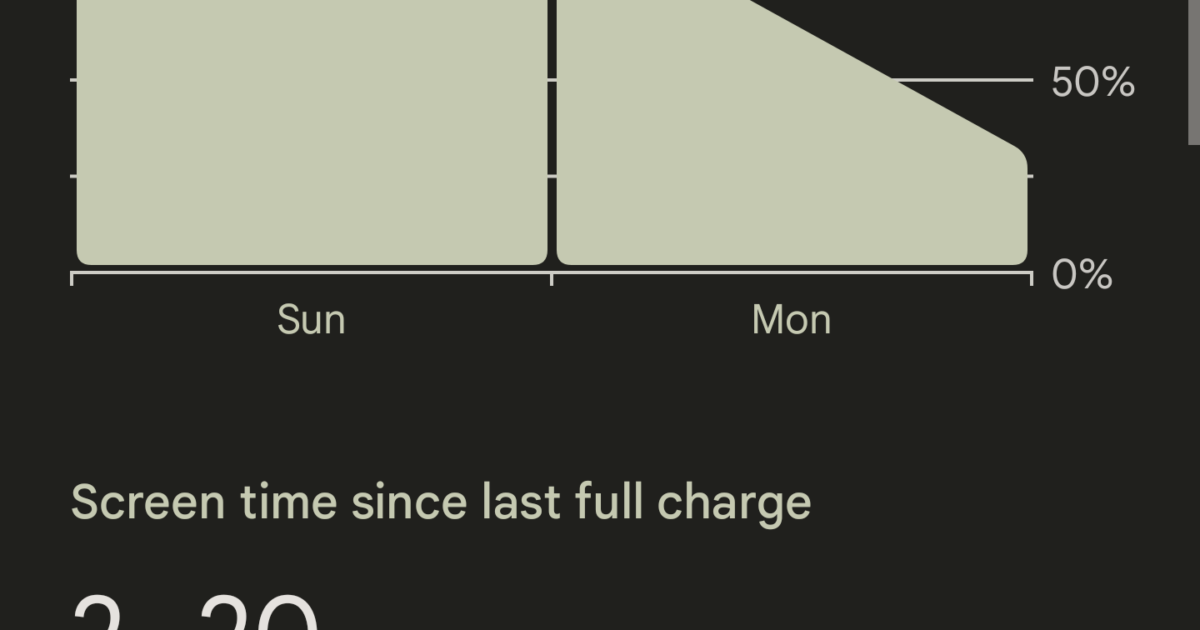
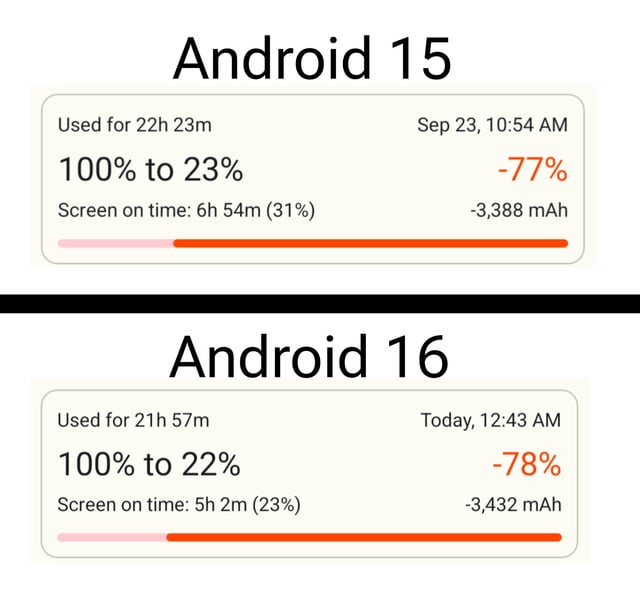
Let’s cut through the noise. You updated to Android 16, and now your phone is behaving like a device from 2015 – dying before dinner despite your usage remaining identical. This isn’t a hardware failure, and no, you don’t need a new phone. The issue is a fundamental conflict between legacy cached data and the new power management stack in Android 16. Most users leave massive battery life on the table because they rely on generic “restart your phone” advice. We aren’t doing generic. We are forcing a clean break between the old OS and the new.
The Pre-Flight Checklist
Before you start tweaking settings, you need to stabilize the baseline. A major OS update leaves behind a graveyard of temporary files from Android 15 that confuse the new system.
- System Cache Purge: You must wipe the cache partition. This clears the “void” of old data sitting on your phone that conflicts with Android 16. Hold Volume Up and the Side Key until the logo appears, then release the Side Key. Navigate with the volume rocker to “Wipe cache partition” and confirm with the power button.
- Application Audit: Open the Google Play Store and ensure every single app is updated. Outdated apps built for Android 15 often lack the new background throttling optimizations in Android 16, causing runaway wake locks.
- Widget Deactivation: Remove third-party widgets from your home screen temporarily. Legacy widgets often poll the system constantly while the new OS tries to enforce Doze mode, creating a battery-draining tug-of-war.
- Battery Sensor Reset: If you use a charge limiter (like Pixel’s 80% cap), you are breaking the battery’s calibration cycle. You must let the battery drain to near-zero and charge to 100% uninterrupted to recalibrate the sensor.
The Core Configuration
The primary culprit behind the Android 16 battery drain is how the OS handles background processes and network handshakes. The update resets your network preferences, often forcing the modem to search for signals aggressively. We need to lock down the radio stack.
- Network Locking: Go to Settings > Network & Internet > Mobile Network. If your area has spotty 5G, manually restrict the network type to LTE only. The “5G/4G/3G” automatic setting causes the modem to spike power searching for towers that aren’t there.
- Scanning Throttling: Navigate to Location > Wi-Fi Scanning and Bluetooth Scanning. Turn both off. These background scans were meant to improve location accuracy, but in Android 16, they prevent deep sleep mode.
- Adaptive Brightness Reset: Turn off Adaptive Brightance for 24 hours, then turn it back on. This forces the system to re-learn your lighting environment using the new sensor algorithms in A16.
Step 2: Hidden Parameter Adjustments
This is where we stop treating the phone like a toy and start treating it like a machine. Android 16 introduced stricter battery optimization features, but they sometimes misfire, killing useful background tasks while leaving malicious ones alive.
- Device Health Services Reset: Go to Settings > Apps > See All Apps > Device Health Services. Clear Storage and Cache. This app controls the “Adaptive Charging” feature. If its cache is corrupted from the update, it will overwork the battery during idle hours.
- Background Restriction Overrides: Check Settings > Battery > Battery Usage. Identify apps showing high “Background” usage. Restrict them manually. Do not rely on the system’s automatic “Optimize” function; it is often too lenient after a major update.
- Display Refresh Rate Cap: If your phone supports 120Hz, force it down to 60Hz for 48 hours. The new UI animations in Android 16 can trigger unnecessary frame rendering spikes that the 120Hz panel amplifies.
Step 3: Advanced Automation Rules
If you want the battery to survive, you have to stop relying on willpower. We need to automate the power-saving triggers so the phone throttles itself before the drain becomes noticeable.
- Battery Saver Scheduling: Instead of waiting for 15%, set Battery Saver to turn on automatically at 30%. This aggressive threshold prevents the deep discharge cycles that cause voltage drops.
- Macro/Routine Setup: If you use a Pixel, use Rules to turn off “Mobile Data” and “Location” when the screen is off for more than 10 minutes. If you use Samsung, use Modes to trigger “Power Saving” when connected to your work Wi-Fi (assuming you don’t need heavy background syncing there).
What Most Guides Tell You To Ignore (But Shouldn’t)
There is a massive elephant in the room regarding the Android 16 rollout. Users are reporting random shutdowns – phones switching off at 30% or jumping from 74% to 11% instantly. This isn’t just “drain”; it’s a calibration failure.
Tags: battery drains faster since Android 16 update, Android 16 battery drain fix, Pixel battery drain Android 16, Android 16 battery life fix, wipe cache partition Android 16, deep sleep battery drain Android 16, battery calibration Android 16, Device Health Services clear cache, Android 16 background drain, charge limiter Android 16 bug.