How to Fix How to Calibrate a Google Maps App to Be More Accurate Without Losing Performance
 androfyi September 18, 2026 4 min read 102 views
⚡ The Core Solution
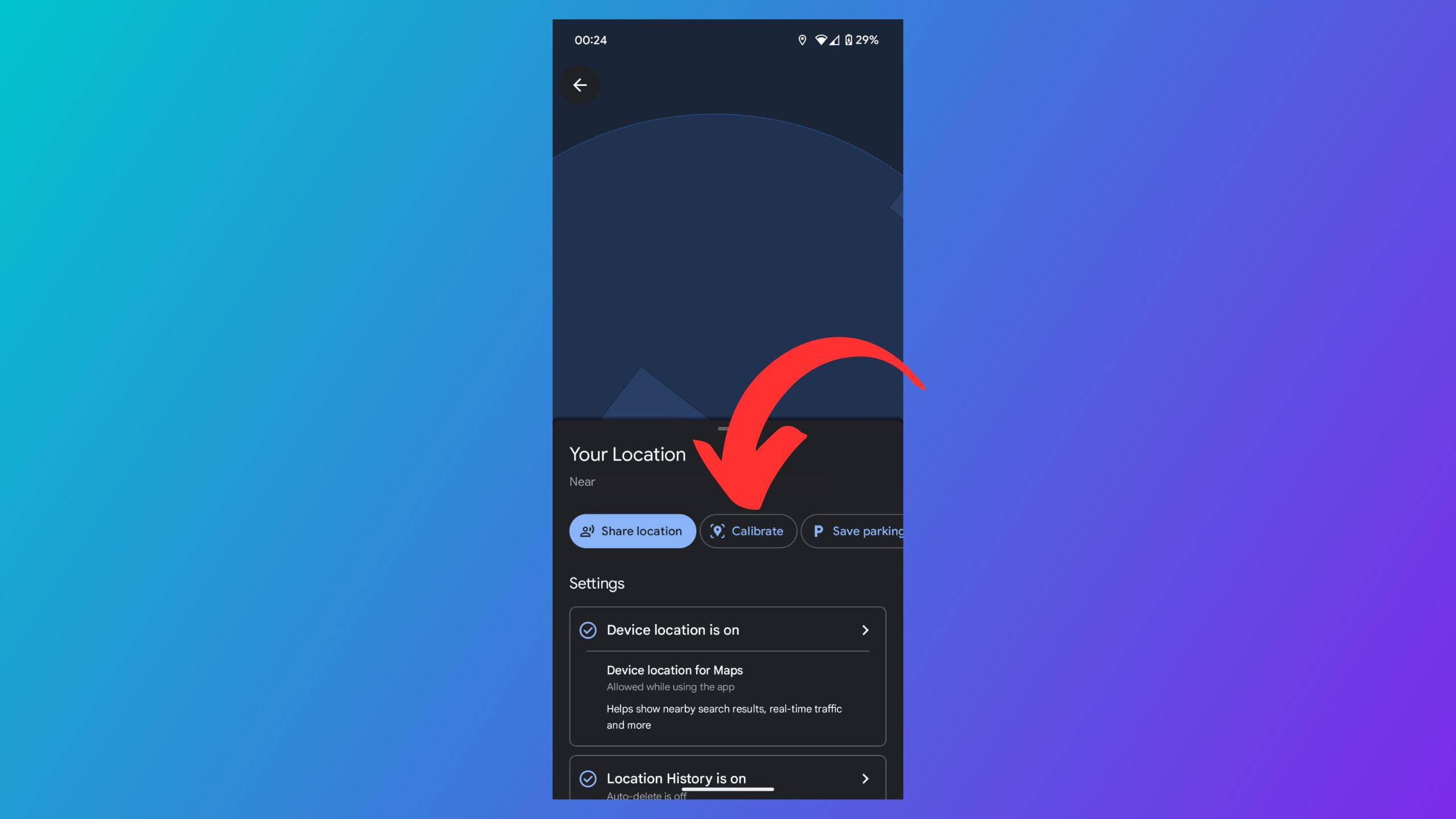
Open Google Maps, tap your blue dot, select Calibrate, and follow the on-screen prompts to either scan your surroundings via Live View or perform a figure-eight motion. This instantly snaps your errant blue dot back to reality and restores accurate navigation.
Our team relies on Google Maps daily, and we are sick of the marketing myth that it just works out of the box. If your blue dot is pointing south while you are driving north, you are dealing with sensor drift and lazy OS defaults. That wandering blue dot is not just a minor annoyance; it is a symptom of your phone’s magnetometer falling out of sync with the GPS baseline. Google Maps fuses GPS, Wi-Fi scanning, and compass data to locate you, but when the gyroscope drags or the OS restricts location access, the app projects you into the middle of a lake or the wrong side of a one-way street.
What Needs Changing First
- Location Permissions: Revoke the default “Approximate” location access and grant “Precise Location” so Maps can triangulate via Wi-Fi and cell towers, not just a generic GPS ping.
- Network Scanning: Keep your Wi-Fi radio active even if you are not connected to a network. Google Maps scans nearby Wi-Fi signal strengths to refine your coordinates when satellite signals bounce off skyscrapers.
- Device Orientation Mode: Android users must enable “High Accuracy” mode in system settings, which forces the device to combine GPS, Wi-Fi, and mobile networks simultaneously instead of saving battery.
The Core Configuration
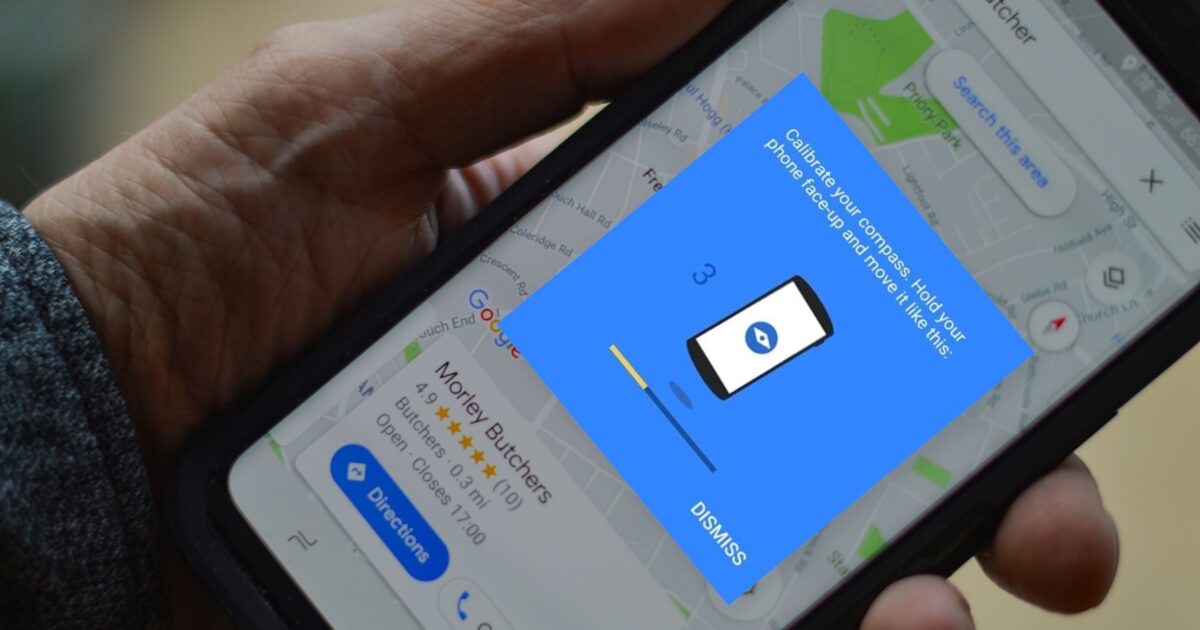
The built-in calibration tool is buried, but it works. Tap your blue dot on the map, select “Calibrate,” and let the app dictate the workflow. If you are outside, use Live View to scan storefronts and street signs. If you are indoors, the app will fall back to the compass calibration, prompting you to tilt and flip your phone to gather magnetometer data across three dimensions.
Fine-Tuning & Verification
The figure-eight motion is not a placebo; it forces the compass to measure the magnetic field from multiple axes, correcting for local interference. Watch the beam narrow on your screen – if it stays wide, your local magnetic environment is polluted, or your phone case has a magnetic clasp killing the sensor. If Live View fails because you are indoors, step outside. The computer vision algorithm needs sharp text and contrasting architectural edges to lock onto your position.
Common Edge-Case Errors
If you are indoors, Live View will fail because the camera cannot read street signs or distinct architectural features. The app will prompt you to use the compass instead, forcing you to wave your phone around like a caffeinated conductor.
Step outside, hold your phone horizontally, and sweep it across the street. Point it directly at shopfronts; the algorithm needs sharp text and contrasting edges to lock onto your position.
If calibration, app updates, and a full device restart do not fix the drift, your magnetometer is likely physically damaged. No amount of software tweaking can fix a fried sensor. You are stuck with a factory reset or a new phone.
Tags: how to calibrate google maps, google maps blue dot wrong direction, fix google maps accuracy android, calibrate compass google maps, google maps calibration figure 8, precise location google maps, google maps live view calibration, high accuracy mode android, fix iphone location services google maps, google maps not pointing right, refresh google maps location, reset phone compass, google maps high accuracy mode, location services iphone google maps, improve gps accuracy smartphone
Related reading