How to Fix What is a little known or “hidden” iPhone feature that you use every day? : r/iphone Without Losing Performance
 androfyi
June 12, 2026
8 min read
205 views
androfyi
June 12, 2026
8 min read
205 views
⚡ The Core Solution
Stop ignoring the Accessibility and Keyboard menus. Most of the genuinely useful “hidden” iPhone features live in Settings > Accessibility and Settings > General > Keyboard, and toggling them on takes about fifteen seconds each.
Here is the uncomfortable truth about iPhone “hidden features”: Apple does not actually hide them. They bury them three menus deep behind labels like “Audio/Visual” or “Touch,” which sounds like diagnostic tools rather than daily utilities. The result is that millions of users scroll past a built-in white noise generator, a document scanner, and a text-replacement engine every single day because the Settings app does a terrible job advertising what these switches actually do.
Our team went through the most upvoted responses from the r/iphone thread, cross-referenced them against what Apple actually ships in iOS 17 and 18, and separated the features that are genuinely useful from the ones that sound impressive but collect digital dust. What follows is the curated list, organized by the friction point each feature eliminates.
What Needs Changing First
- Keyboard Friction: The default iOS keyboard treats your cursor like it is permanently drunk. Tapping precisely between two characters is an exercise in rage. The hidden fix is the space-bar trackpad: press and hold the space bar until the keys go gray, then slide your finger to position the cursor exactly where you need it. No magnifying glass required.
- Undo/Redo Panic: You just nuked an entire paragraph with an accidental swipe. Instead of shaking your phone like a broken toaster (yes, that still exists, and yes, it is embarrassing in public), swipe down with three fingers anywhere on the screen. An undo bar appears instantly. Swipe up with three fingers to redo. This works system-wide, in every app.
- Text Replacement: If you type your email address, home address, or PayPal link more than twice a day, you are wasting time. Go to Settings > General > Keyboard > Text Replacement. Create shortcuts like “@@” for your full email or “addr” for your mailing address. It is not glamorous. It is the single highest-ROI setting on the phone.
The Core Configuration
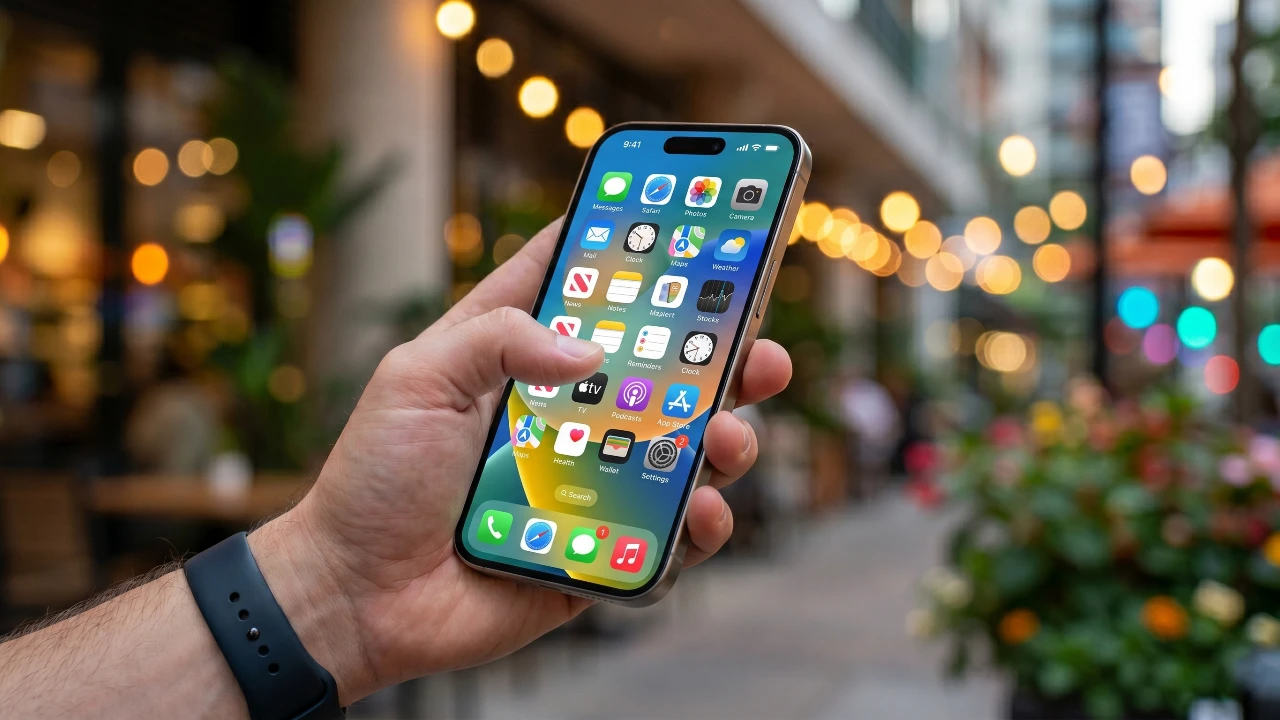
- Background Sounds (Hidden White Noise Generator): This is the feature that surprises people the most. Go to Settings > Accessibility > Audio & Visual > Background Sounds. You get Balanced Noise, Bright Noise, Dark Noise, Ocean, Rain, and Stream. It runs underneath other audio, works with AirPods and noise cancellation active, and it is perfect for open offices or loud coffee shops. Apple built a legitimate focus tool and then hid it inside the Accessibility menu where nobody looks.
- Magnifier with Back Tap: If you are over forty and have ever squinted at a supplement label in a pharmacy, this one is for you. Go to Settings > Accessibility > Magnifier and turn it on. Then go to Settings > Accessibility > Touch > Back Tap and assign Double or Triple Tap to Magnifier. Now a quick tap on the back of your phone launches a zoomed-in camera view with a brightness slider and a freeze-frame button. Pair it with the LED flashlight and you have a portable reading loupe that fits in your pocket.
- The Print-to-PDF Hack: There is no “Save as PDF” button on iPhone. This causes endless confusion when someone needs to email a receipt, a web page, or a document. The workaround is elegant: tap the Share button, tap Print, then pinch outward on the print preview image with two fingers. The preview expands into a full PDF that you can save to Files or share directly. No third-party app needed. No subscription required. It has been in iOS since 2013.
- Live Captions for Real-Time Transcription: Settings > Accessibility > Live Captions. Turn it on. Now any audio playing on your phone, FaceTime calls, social media videos, or even someone speaking across the room if you leave the mic open, gets transcribed in real time. It processes everything on-device, which means it works offline and nothing gets sent to a server. For accessibility, for noisy environments, or for catching a quote in a video you are watching on mute, this is indispensable.
- App Store Update Bypass: The App Store home page is an aggressive, algorithm-driven advertisement feed masquerading as a utility. You do not have to look at it. Long-press the App Store icon on your home screen, tap “Updates” from the popup menu, and you jump straight to the list of available updates. No ads. No “Today” tab. No game you will never download.
- Measurement Conversion in-Line: Type any measurement into any text field, highlight it, and iOS offers a conversion. Type “32oz,” highlight it, and it will offer you milliliters, cups, liters. Works for temperature (hold 0 for the ° symbol), distance, weight, and currency. It is not a separate app. It is baked into the text-selection engine.
Fine-Tuning & Verification
- Visual Look Up: Open any photo in the Photos app. If the info button (the “i” at the bottom) has small stars next to it, tap it. iOS will identify plants, animals, dog breeds, landmarks, and works of art in that photo. It also lets you lift subjects out of images by long-pressing them, which is absurdly useful for making quick graphics.
- Scan Text from Camera into Any Text Field: Tap inside any text field, tap the camera icon (or tap and hold, then select “AutoFill” > “Scan Text”), and point your camera at a physical document. iOS OCR’s the text and drops it directly into the field. No Notes app middleman. No copy-paste shuffle.
- App Switching via Home Bar: Forget the app switcher card view. On iPhones with a home indicator bar, swipe left or right along the bottom edge of the screen to jump between your most recently used apps. It is faster, requires less precision, and works one-handed.
- Mirror Front Camera Control: Go to Settings > Camera > Mirror Front Camera. By default, the front camera flips your face so others see you the way a mirror would. If you want the raw, unflipped perspective (which is what the camera sensor actually captures), toggle this off. It matters if you are filming anything with text in the background.
- LED Flash for Alerts: Settings > Accessibility > Audio & Visual > LED Flash for Alerts. Your camera flash blinks when you get a notification or call. Useful when the phone is face-down, in your bag, or when you are in a loud environment and cannot hear the ringer. It is an older feature that still works flawlessly on every current iPhone.
Common Edge-Case Errors
- Background Sounds draining battery: Background Sounds runs continuously when enabled. If you activate it manually when needed rather than leaving it on all day, you avoid a noticeable battery hit. It is an accessibility feature designed for focus sessions, not 24/7 ambient playback.
- Text Replacement syncing to shared devices: Text replacements sync via iCloud to every device on your Apple ID. If you set “@@” as your email on your iPhone, it will also expand to your email on your iPad and Mac. This is usually a feature, but if you share a family iPad, your shortcuts may confuse other users.
- Live Captions accuracy limits: On-device transcription is good but not perfect. Heavy accents, technical jargon, and overlapping speakers will produce errors. It is a real-time tool, not a legal transcript. Do not rely on it for anything that requires word-perfect accuracy.
- Back Tap false triggers: The Back Tap sensor is sensitive. If you tap your phone on a table or grip it firmly, it can trigger a Double or Triple Tap action accidentally. If you assign something like Magnifier or Screenshot to Back Test, expect phantom activations until you learn the exact tap pressure it requires.
Tags: hidden iPhone features, iPhone tricks reddit, iOS hidden settings, iPhone background sounds white noise, print to PDF iPhone, iPhone text replacement, space bar cursor iPhone, back tap magnifier, live captions iPhone, app store bypass, visual look up iPhone, LED flash alerts, emergency SOS power button, Shazam control center, measurement conversion iPhone, scan text camera iPhone, mirror front camera, undo three fingers iPhone, hidden iPhone features 2024, r/iphone best hidden features, iPhone everyday hidden tools