
How to Fix Standby Draining Battery? Without Losing Performance
 androfyi August 17, 2026 4 min read 94 views
⚡ The Core Solution
Disable “Mobile Data Always Active” in Developer Options and force a system cache wipe from the boot menu. This forces the modem to sleep properly and clears corrupted temporary files preventing deep doze.
Standby battery drain isn’t just a “bad battery” issue; it’s a failure of your device’s power states. When your screen goes off, the processor should enter a suspended state known as deep doze. However, recent firmware updates – like the March 2026 Pixel patch – have introduced bugs where the GNSS (Global Navigation Satellite System) ignores sleep commands, keeping the CPU at 80% load while your phone sits idle. Even without a buggy update, rogue background processes, poor signal forcing the modem to overwork, or hidden malware can keep your radios and processors active, turning your flagship phone into a space heater that drains 25% overnight.
The Pre-Flight Checklist
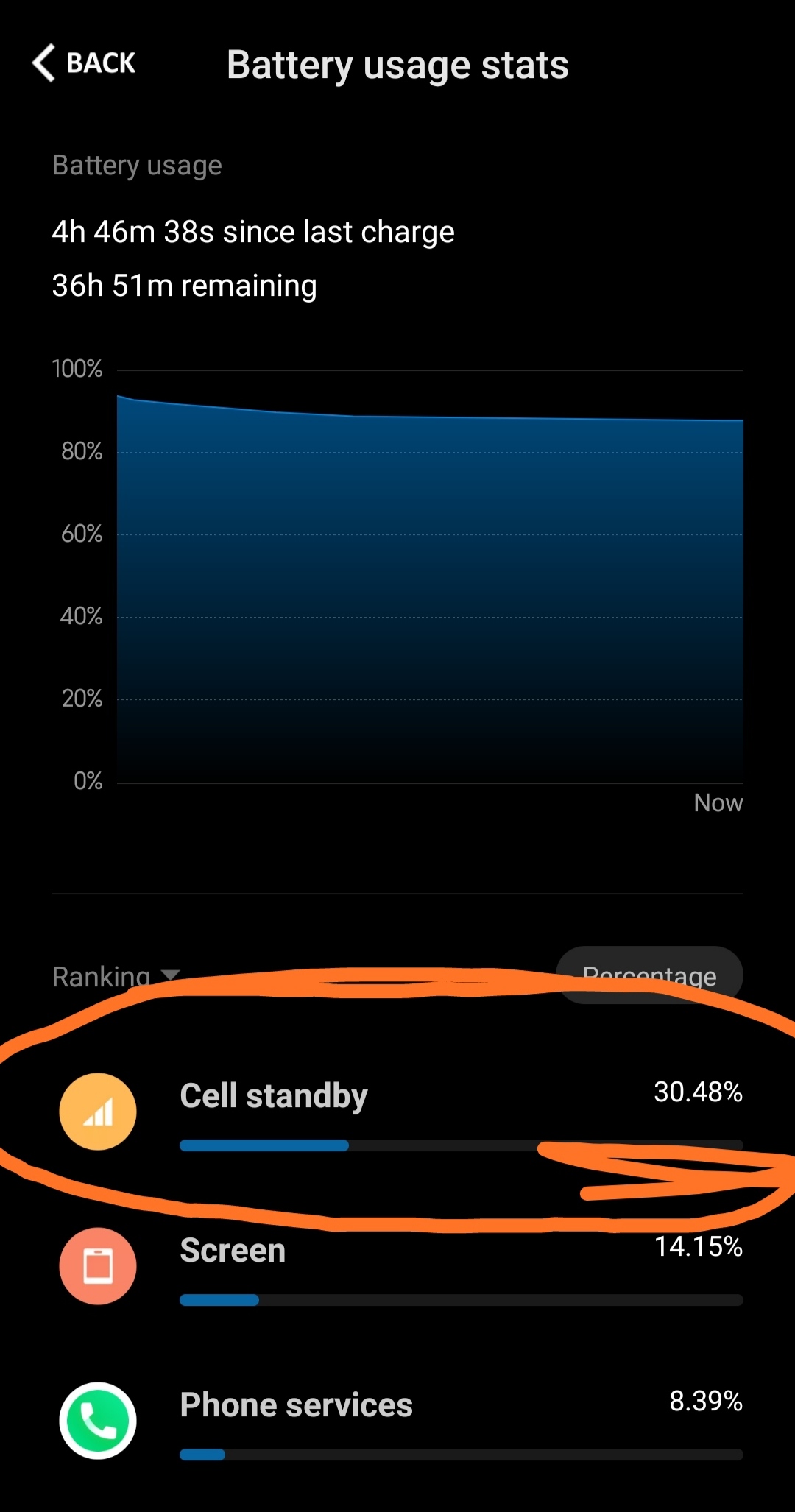
- Signal Strength: Check your mobile signal. A weak signal forces the modem to boost power, making “Mobile Network Standby” eat 30% of your battery.
- Battery Stats Audit: Navigate to Settings > Battery > Battery Usage. Look for unfamiliar entries at the top of the list or unexplained data spikes while the screen was off.
- Malware Scan: Run a full scan using Google Play Protect or a trusted mobile security suite to isolate covert miners or spyware exfiltrating data.
- Cache Partition: Prepare to wipe the system cache from the boot menu, especially if the drain started right after an OS update.
Phase One Execution
Now we kill the background vampires. Stop force-closing your apps; the OS handles memory better than you do. Instead, target the system-level processes that actually cause the friction.
- Nearby Device Scanning: Turn this OFF. It constantly pings for devices you don’t care about.
- Wi-Fi & Bluetooth Scanning: Disable “Wi-Fi Scan” and “Bluetooth Scan” in Location settings. These run even when the radios are toggled off.
- Default Print Services: Disable this unnecessary background process if you never print from your phone.
- Mobile Data Always Active: Go to Developer Options and toggle this OFF. Your phone should drop to 2G/3G when the screen is off, saving the 5G modem from destroying your standby time.
- Digital Wellbeing: Revoke its usage access. It constantly monitors your app usage, creating a paradoxical feedback loop of battery drain.
Fine-Tuning & Verification
With the major drains plugged, we optimize the OS to learn your behavior and verify the hardware is complying.
- Adaptive Battery: Ensure this is ON. Let it learn your patterns and restrict apps you rarely use.
- Deep Sleep Apps: Manually add apps that don’t need background sync (like games or utilities) to the deep sleep list.
- Battery Protection: Switch to Basic or Adaptive charging to preserve long-term battery health, though this doesn’t directly fix standby drain.
- Performance Profile: Set this to “Light” if you want maximum battery life over raw speed.
Common Edge-Case Errors
❌ The Force-Closing Myth
Do not force close all your apps constantly. Modern OS architectures are designed to freeze background apps. Force-closing them requires the CPU to work harder to reload them the next time you open them, causing more drain than leaving them frozen.
✅ The Airplane Mode Test
If your phone still drains in Airplane Mode, you are dealing with a hardware failure or a severe OS bug preventing deep doze. If it stops draining, the issue is your carrier’s signal or a rogue network service.
⚠️ The “Mobile Network Standby” Illusion
People panic seeing “Mobile Network Standby” at 40% of battery usage. Remember, it uses X% of Y% that has drained. If your total drain is only 2% overnight, 40% of that is a negligible 0.8%. The percentage looks massive only because your overall usage was incredibly low.
Tags: standby battery drain fix, mobile network standby battery drain, Android battery drain overnight, Pixel 6 pro battery drain, iOS 26 battery drain, how to stop phone battery drain, deep doze not working, clear system cache Android, disable mobile data always active, fix battery drain after update, why is my phone battery draining while off, spyware battery drain Android, best battery optimization settings, how to wipe cache partition, stop battery drain in airplane mode