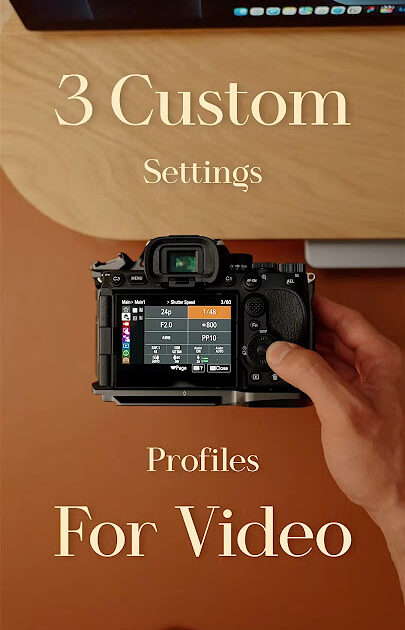
How to Fix MY Custom Video Profiles 🎬 🎥 This is how I set up … Without Losing Performance
 androfyi
June 4, 2026
6 min read
172 views
androfyi
June 4, 2026
6 min read
172 views
⚡ The Core Solution
Strip the assigned profile at the folder level first, then rebuild your encoding presets from a copied baseline rather than touching the locked defaults. This eliminates the hidden conflicts that tank rendering throughput and silently corrupt adaptive bitrate manifests.
Here’s the dirty secret nobody in the product marketing deck tells you: custom video profiles work beautifully in a demo environment and then quietly fall over the moment you stack adaptive bitrate presets on top of folder-level inheritance rules. The root cause is almost always a mismatch between what the Experience Manager console says is assigned and what the processing pipeline actually reads during ingestion. I’ve watched teams burn entire sprints chasing encoding artifacts, only to discover the real culprit was a stale folder-level profile reference sitting underneath a “correctly” configured global setting. The fix is surgical. You need to decouple the folder assignment, clone the default profile into something editable, and then rebuild your preset chain from scratch. No shortcuts.
The Pre-Flight Checklist
- Folder Inheritance Audit: Navigate to Assets, select the target folder, and verify whether a Video Profile name is displayed directly below the folder title. If it is, that folder has an explicit assignment overriding your workspace defaults.
- Default Profile Lock Awareness: The out-of-the-box Adaptive Video Encoding profile that ships with Dynamic Media is read-only by default. You cannot edit it directly. Accept this reality now to save yourself twenty minutes of frustrated clicking.
- Adaptive Streaming Confirmation: If your delivery target is anything other than a single progressive download, you need adaptive bitrate streaming enabled. This checkbox is not decorative. It fundamentally changes how the transcoder segments your output.
- Source Footage Specs: Confirm your frame rate and resolution before touching any preset. A mismatch between your source footage and your encoding preset is the number one cause of ghosting artifacts and audio drift.
- Workspace Style Override Status: If you’re running branded dynamic video campaigns through a platform like Sendspark, verify your global style settings are locked in before you start generating personalized renders. Changing branding mid-campaign will invalidate cached outputs.
Phase One Execution
Start at the folder level. Open the Experience Manager, navigate to Assets, and select the specific folder you want to reconfigure. Hit the checkmark, open Properties, and move to the Video Profiles tab. If a profile is currently assigned, select None from the dropdown and hit Save & Close. This strips the inheritance conflict. You’ll know it worked when the profile name disappears from beneath the folder title.
Now move to Tools > Assets > Video Profiles. Find the Adaptive Video Encoding profile. You’ll notice the Edit button is essentially a trap if you try to use it on the original. Instead, copy the profile and save it with a new, descriptive name. Something like “Custom_ABR_1080p_Adjustable” beats “Copy of Adaptive” every single time. Open your new profile and verify that Encode for adaptive streaming is checked. Do not select this checkbox if you are editing a progressive-only video profile. That distinction matters more than Adobe’s own documentation implies.
Under the Video Encoding Presets heading, this is where the real work happens. Add, edit, or delete presets to match your actual delivery requirements. I strip everything I don’t need. Every unnecessary preset in the chain adds processing time without a proportional quality gain. For most business video use cases, you need no more than three adaptive renditions: a high-bitrate 1080p, a mid-range 720p, and a safety-net 480p.
Fine-Tuning & Verification
Once your custom profile is saved, reassign it at the folder level. Select the folder, open Properties, go to the Video Profiles tab, and choose your new profile from the dropdown. Save and close. The profile name should now appear beneath the folder name in the Assets console.
Upload a short test clip. I use a 30-second representative sample with mixed motion and audio. Process it, then inspect the output manifests. Verify that all expected renditions are present and that the adaptive bitrate ladder is correctly structured. If you see missing renditions or unexpected resolution drops, go back and check your preset bitrates. The most common mistake is setting the bitrate too low for the target resolution, which causes the encoder to downscale aggressively.
For teams running dynamic personalized video campaigns through platforms like Sendspark, the same principles apply at the campaign configuration level. When you create a dynamic video campaign, you’re essentially building a template that pulls prospect-specific variables like name, company, and URL into a rendered output. Set your camera bubble video as the static base layer, define your dynamic background elements, and use the variable placeholders for personalization fields. Generate a test render with a known prospect name and verify the output before scaling to your full contact list.
✅ What This Gets You
- Elimination of hidden folder-level profile conflicts that corrupt encoding pipelines
- Full edit control over adaptive bitrate presets without touching locked defaults
- Consistent, predictable output for both standard DAM workflows and dynamic personalized video campaigns
- Faster processing times by removing unnecessary preset renditions from the chain
Common Edge-Case Errors
❌ The Mistakes That Will Cost You
- Editing the Default Profile Directly: The predefined Adaptive Video Encoding profile is locked. You will get a silent failure or a permissions error. Always copy first.
- Forgetting to Clear the Folder Assignment: If you set a new global profile but leave an old folder-level assignment active, the folder wins. Every time. This is the single most common source of “my settings aren’t applying” frustration.
- Enabling Adaptive Streaming on a Progressive Profile: This creates an invalid manifest. The player will fail silently or throw a generic playback error that sends you down a completely wrong debugging path.
- Ignoring Frame Rate Matching: If your source footage is 30fps and your preset is configured for 24fps, you will get frame blending. Set your profile frame rate to match your source before anything else.
- Over-Personalizing Dynamic Videos: When building personalized video campaigns, resist the urge to inject dynamic variables into every visual element. Too many personalized layers increase render failure rates and make quality control nearly impossible. Stick to two or three high-impact personalization points like the viewer’s name and their company website background.
The bottom line is that custom video profiles are not a “set and forget” feature. They require the same disciplined configuration management you’d apply to any production pipeline. Strip the inheritance noise, clone your defaults, build your preset chain intentionally, and verify with real test footage. Do that, and you’ll stop treating your video infrastructure like a black box that occasionally works and start treating like the precision tool it actually is.
Tags: custom video profiles setup, adaptive bitrate streaming configuration, dynamic media video encoding, video profile folder assignment, personalized video campaign setup, Sendspark dynamic video, Experience Manager video presets, video encoding best practices, adaptive streaming troubleshooting, video profile inheritance conflict, custom video rendering pipeline, dynamic background video personalization, video transcoding optimization, A7IV custom video profiles, video asset management workflow.